
Brother QL-820NWB
4.3Editor score
Multiple wireless connectivity options
Up to 110 labels per minute
Three-hundred-dot-per-inch output
Three-foot maximum label length
A useful library label printer should make cataloging, shelving, book processing, and supply organization faster without adding complicated setup. The right model depends on whether staff print individual spine labels, large batches of media tags, or classroom materials, as well as on label size, print clarity, connectivity, and workflow compatibility.
We compared ten label printers and label makers based on their supplied specifications, including print technology, maximum label dimensions, connectivity options, standalone features, app support, cutting systems, and intended uses. The list covers professional desktop printers for busy technical services as well as compact Bluetooth devices for circulation desks, outreach programs, and mobile labeling.
Each review identifies the product that stands out for a particular library need, from flexible network printing to portable classroom labeling. Ratings and product details reflect the available information, while prices and availability can change, so readers should confirm current listings, accessories, and compatibility before purchasing.
4.3Editor score

4.5Editor score

4.5Editor score
As an Amazon Associate we earn from qualifying purchases.
The comparison below highlights the principal differences in format, connectivity, label capacity, and library workflow suitability, helping technical services, circulation staff, and program organizers identify a practical match.



The Brother P-Touch PT-D610BT earns a 4.5 rating and offers the most balanced approach to library labeling in this guide. It works as a standalone label maker through its QWERTY keyboard and full-color display, while Bluetooth and USB connections let staff move between computers, mobile devices, and dedicated cataloging stations. It is particularly well suited to spine labels, shelving markers, media identifiers, and asset tags.
We may earn a commission when you buy through this link, at no additional cost to you.
Its design options are extensive for a compact model. The unit provides 17 fonts, 17 styles, 160 frames, and 900 symbols, along with support for barcodes and logos. A library can save up to 90 frequently used labels, which is useful for recurring ownership, location, processing, and collection-management formats. The automatic cutter helps maintain a consistent finish, while the 20-character, two-line display provides a useful check before committing tape.
The limitations reflect its position as a professional connected label maker rather than an industrial roll printer. Maximum label width is one inch, and the product is less appropriate than the Brother QL models for long banners, large media cases, or a very high volume of standard address labels. Library users should also consider the need for compatible Brother TZe tape and confirm that the intended design method works with their library management environment.
Despite those constraints, the PT-D610BT is a strong all-around recommendation for libraries that want one device for desk-based and computer-assisted labeling. It gives staff useful standalone capability without giving up mobile connectivity or polished design features. For a branch with varied labeling needs, it is easier to standardize on than a collection of highly specialized devices.
The PT-D610BT supports both direct keyboard entry and connected editing through computers or mobile devices. That flexibility lets a cataloger preview a label at the workstation or create a more elaborate asset tag from a tablet, while the 175 business-oriented templates and Brother P-Touch Editor support recurring institutional designs.
Storage for up to 90 frequently used labels is one of the most valuable features for daily operations. Libraries can reduce repetitive typing for consistent call-number, location, barcode, and equipment labels, helping new staff reproduce approved formats without rebuilding them from scratch.
We may earn a commission when you buy through this link, at no additional cost to you.
The Brother QL-820NWB carries a 4.3 rating and is the premium choice for libraries that need a permanent, shared printing station. Its combination of Bluetooth, Ethernet, 802.11b/g/n wireless networking, and USB host connectivity allows it to fit into a technical-services room, processing area, or shared office without being tied to one computer.
We may earn a commission when you buy through this link, at no additional cost to you.
The printer can produce up to 110 standard address labels per minute with black text at 300 DPI, making it suitable for batches of spine labels, shipping materials, file-folder tags, name badges, and other routine processing output. Its readable monochrome LCD also supports standalone operation, while the USB host interface can accommodate a peripheral such as a scanner for a more integrated workflow.
The maximum label length of three feet is one of its most important advantages. Long labels can serve library notices, directional signage, equipment tags, archival boxes, or banners. The ability to print black and red using DK 2251 media also makes it more versatile than strictly monochrome-only models, although it does not provide full color output.
This printer is best recommended for a library that prints steadily, shares the device among several departments, or needs a combination of speed, networking, and longer labels. Its setup is more involved than that of a handheld Bluetooth maker, but the operational reach is substantially greater for institutions with centralized processing demands.
Ethernet and wireless networking make the QL-820NWB practical for centralized workflows. Staff can print from compatible computers across the building, while Bluetooth and the USB host interface broaden the ways peripherals and mobile workflows can be integrated.
A stated speed of up to 110 standard labels per minute helps during acquisition processing, donation sorting, and large cataloging batches. Three-foot label support expands the range from compact spine labels to box identification, signage, and long equipment markers.
We may earn a commission when you buy through this link, at no additional cost to you.
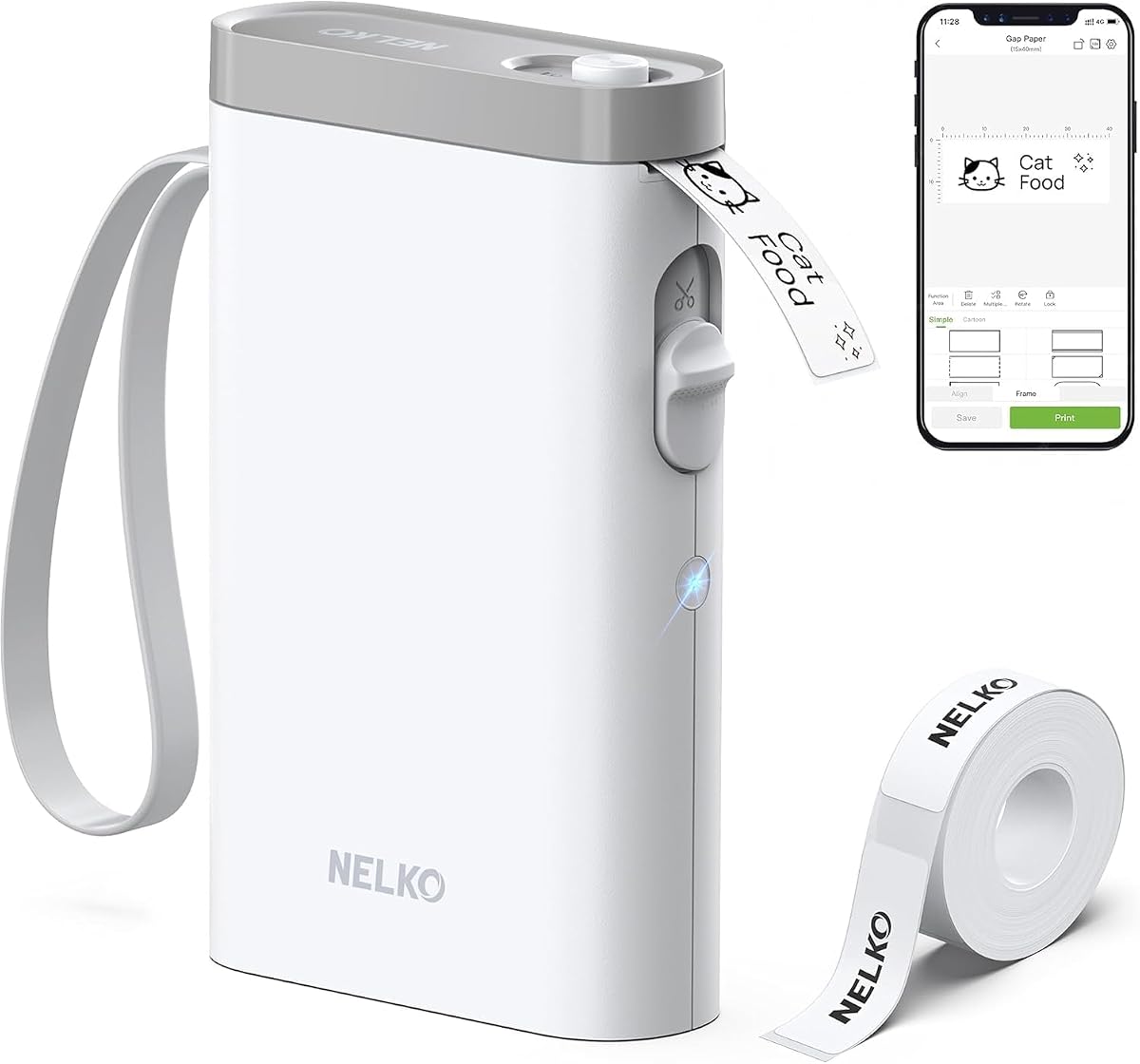
The Nelko P21 has a 4.4 rating and focuses on portable, app-driven labeling. Its compact frame and built-in rechargeable battery suit librarians who move between classrooms, reading rooms, outreach tables, and community events, where a full-size desktop printer would be inconvenient.
We may earn a commission when you buy through this link, at no additional cost to you.
Through the Nelko app, users can create text, QR codes, barcodes, images, borders, and other designs using 29 languages, 750-plus templates, 5,500-plus materials, 3,600-plus icons, and 700-plus borders. The app is designed for iOS and Android devices, and thermal printing at 203 DPI produces monochrome output without ink or toner. Several fixed label sizes are available, including 14 by 40, 50, and 75 millimeters.
There are important constraints. The P21 does not work with computers, does not support continuous label tapes, and is not compatible with Google Pixel phones running Android 14. The manufacturer also recommends updating the app to version 4.8.0 and using NELKO thermal paper for the most reliable results. Continuous strips are not appropriate for a long, narrow label workflow.
Even with those limits, the P21 is a strong choice for pop-up libraries, classroom kits, children's programs, and teams responsible for labeling shared materials. Its portability and creative app make it more engaging than a plain text-only device, provided users stay within its phone-based and fixed-size label system.
The P21's large template and graphics library is particularly valuable for youth programs, maker activities, and seasonal displays. Librarians can rapidly prepare name tags, activity labels, book-bin identifiers, QR-code bookmarks, and decorative supply markers without designing each label from a blank screen.
Because the P21 uses direct thermal technology, it does not require ink or toner. That simplifies setup at temporary stations and makes it convenient for mobile teams, although users should follow the manufacturer's paper recommendations for consistent output.
We may earn a commission when you buy through this link, at no additional cost to you.
The Brother PT-M95 earns a 4.5 rating and is a cost-conscious option for basic library labeling. It is a self-contained label maker with a QWERTY keyboard and easy-view display, making it convenient for staff who want to print short identifiers without launching desktop software or managing a mobile app.
We may earn a commission when you buy through this link, at no additional cost to you.
The bundle includes one sample of black-on-white tape and three full-length black-on-white tapes. Genuine Brother M tapes are available in 9-millimeter and 12-millimeter widths and a range of colors, although the supplied bundle itself is monochrome. The unit prints one or two lines of text and includes eight Deco Mode patterns, nine type styles, frames, and symbols.
Its limitations are substantial for high-volume technical services. It does not offer the large-format printing or network workflow of the Brother QL line, and its output is limited to relatively narrow labels. The PT-M95 is therefore more appropriate for book spines, media cases, supply bins, and small office objects than for long shelf-edge strips or large signage.
For a small library, volunteer group, or home office that needs an uncomplicated standalone device, this bundle provides useful immediate capability. Its included tapes also reduce the need for a separate initial purchase. The strongest recommendation is for straightforward short labels where simplicity matters more than advanced design or large batches.
The built-in keyboard and display allow staff to enter text directly, which is useful for quick corrections or locations where computer access is inconvenient. The P-M95 keeps the process understandable for occasional users and volunteers.
Including four tapes gives users a usable range of black-on-white material for immediate labeling. Libraries can standardize basic spine and container identifiers while preserving the option to purchase additional compatible M tapes in other widths or colors.
We may earn a commission when you buy through this link, at no additional cost to you.
The Brother QL-810W has a 4.2 rating and is built for fast wireless batch printing. It can produce up to 110 standard address labels per minute with black text at 300 DPI, and its Wi-Fi and USB connections give staff flexibility when the device is shared across a processing area.
We may earn a commission when you buy through this link, at no additional cost to you.
The printer supports package, envelope, file-folder, name-badge, and postage labels, all common needs in library acquisition, media processing, and internal circulation workflows. Black and red output is available with DK 2251 labels, which can improve visual differentiation in internal systems. Mobile printing is supported through AirPrint, Brother iPrint & Label, and compatible wireless devices.
Compatibility deserves attention because the listed operating systems include several older Windows and Mac OS X versions. Libraries running current managed devices should verify driver and app support in their environment before installation. Unlike the QL-820NWB, the supplied specifications do not list Bluetooth or Ethernet connectivity.
The QL-810W is most convincing for a library that already relies on a compatible wireless network and wants rapid production of standard labels. It offers a practical middle ground between a high-throughput professional printer and a smaller connected label maker, particularly when branch staff need to send jobs to a shared unit.
Wi-Fi allows compatible devices to send jobs without a direct cable, reducing bottlenecks around one processing station. USB remains available for direct setup or use in a fixed workflow, while mobile support broadens access for branch and outreach staff.
Black and red output is useful when a library wants to separate status, ownership, or priority information visually. It remains less flexible than full-color printing, but the added second color can make operational labels easier to distinguish.
We may earn a commission when you buy through this link, at no additional cost to you.
The SUPVAN T50M Pro receives a 4.5 rating and offers a broad selection of label formats in an app-driven design. It can print labels from three-quarters of an inch to two inches wide, making it more flexible than many compact makers and suitable for storage bins, shipping addresses, product information, QR codes, barcodes, and logos.
We may earn a commission when you buy through this link, at no additional cost to you.
Its app supports editing from a phone, tablet, or computer, with more than 30 fonts, 50 frames, and 660 icons available without registration. Automatic label size recognition reduces setup friction, while enhanced image processing is designed to produce clear results when graphics or branding are included. The package also includes three tapes, giving users a usable starting assortment.
The product is still primarily an app-based thermal label maker rather than a full desktop production system. Libraries with highly specialized barcode software, long continuous rolls, or a requirement for a large built-in screen may need a more conventional printer. Users must also use compatible media and confirm that their preferred editing device and operating system are supported.
For small libraries, community rooms, makerspaces, and decentralized staff, the T50M Pro provides a generous mixture of widths and design tools. It is especially appealing where users want attractive shipping, inventory, or supply labels from a mobile device without maintaining a dedicated computer connection.
Compatibility with square, round, address, cable, jewelry, and file labels gives the T50M Pro unusual versatility for a compact maker. This range covers both functional library labels and less conventional uses such as tagging media accessories or presentation materials.
The no-registration app and automatic size detection lower the learning curve. Users can begin with a template, add text, graphics, borders, QR codes, or barcodes, and reprint recurring designs without rebuilding them for each item.
We may earn a commission when you buy through this link, at no additional cost to you.
The Brother QL-800 earns a 4.3 rating and is a high-speed desktop option for a library's central processing area. It produces up to 93 labels per minute at 300 DPI, giving it enough speed for acquisition batches, media preparation, shipping labels, and other tasks that occur in concentrated bursts.
We may earn a commission when you buy through this link, at no additional cost to you.
Its Plug & Label technology allows direct printing from Microsoft Word, Excel, and Outlook without additional software installation, which can simplify adoption by staff already working with common office documents. The printer also supports black and red output, a built-in auto-cutter, Brother Genuine DK pre-sized labels, and continuous-length tapes up to three feet.
Its main limitation is connectivity. The product information emphasizes USB and multi-system compatibility rather than Wi-Fi, Bluetooth, or Ethernet, so it is best positioned as a workstation printer connected to a single managed computer. Libraries wanting staff to print from phones or several rooms may prefer the QL-810W or QL-820NWB instead.
For a technical-services team that already prepares labels in Word or Excel, the QL-800 can create a smooth, familiar workflow. It offers strong speed, good resolution, and flexible media support in a professional desktop design, making it a strong choice for a dedicated processing station.
Plug & Label support is particularly useful for acquisitions staff who already maintain call-number, shipping, or processing lists in spreadsheets. The printer can produce labels from Word, Excel, and Outlook without a separate installation, reducing barriers to adoption.
At 300 DPI, the QL-800 supports crisp text and graphics for professional labels. Its automatic cutter produces a consistent finish, while pre-sized and continuous media allow users to choose between fast standard output and custom-length labels.
We may earn a commission when you buy through this link, at no additional cost to you.
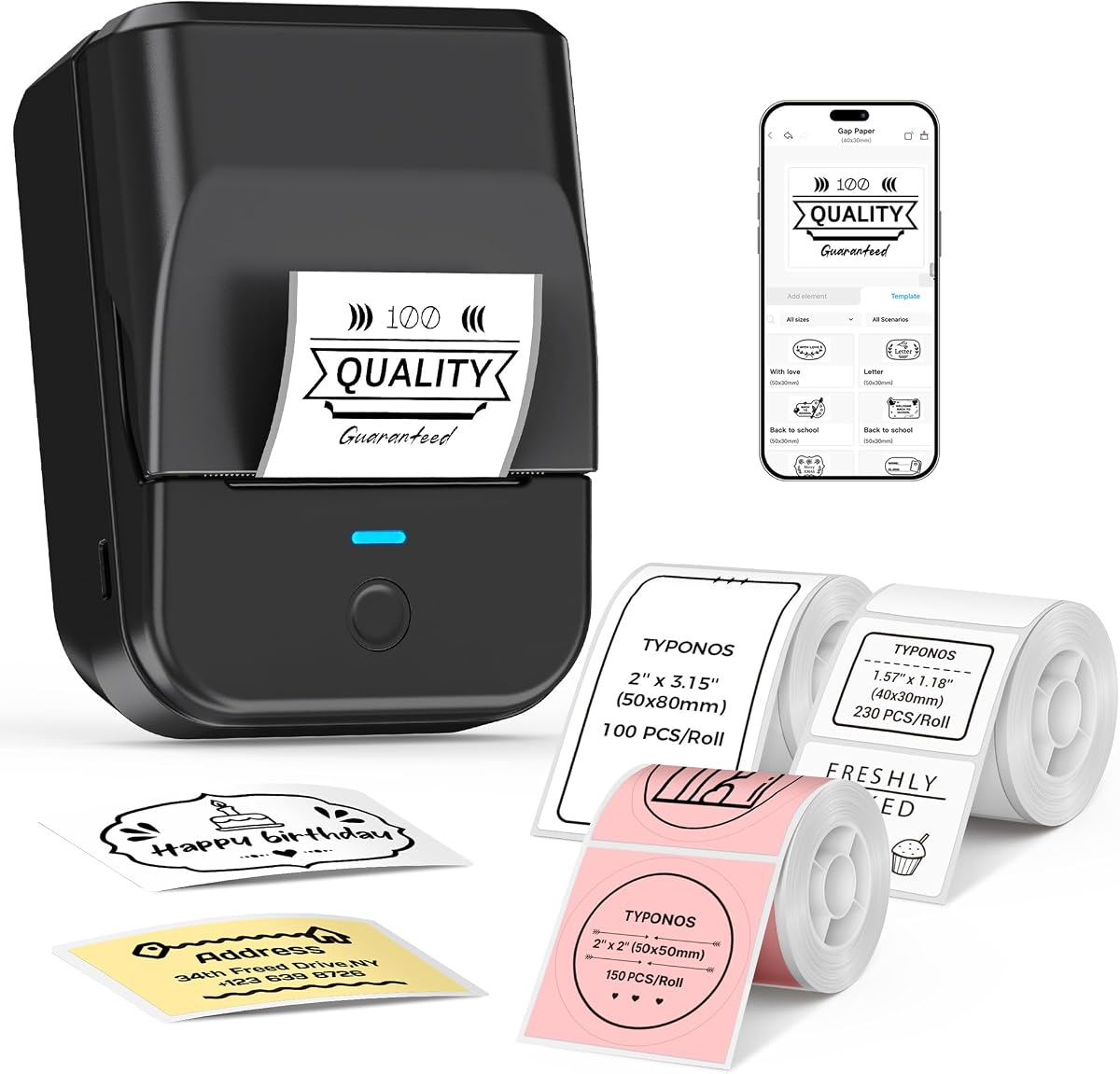
The NIIMBOT B1 has a 4.3 rating and combines a compact body with relatively wide two-inch label capability. It is a practical option for libraries that need larger supply, equipment, or media labels without carrying a full desktop printer, while its rechargeable battery supports mobile work.
We may earn a commission when you buy through this link, at no additional cost to you.
The app detects label size automatically and provides more than 30 fonts, multilingual support, 100 borders, and 1,500 symbols. Users can customize text formatting, save templates for repeated printing, and connect through Bluetooth with iOS or Android devices. A USB route and downloadable driver are also available for PC use, expanding its usefulness beyond a phone-only tool.
The product is not compatible with tablets, which may matter for staff accustomed to using larger screens for design work. Its two included 1.18-inch white label rolls offer a starting point, but a library will likely need to acquire its preferred media in a range of sizes. Thermal technology avoids ink and toner, and an automatic shutoff after 15 minutes of inactivity helps manage battery use.
The B1 is recommended for staff who need attractive, moderately wide labels on the move or at small satellite stations. It is less appropriate for long continuous strips or shared enterprise printing, but it offers a capable middle ground for office, classroom, media, and event labeling.
Two-inch media gives the B1 more room for descriptive text, larger QR codes, and wider container identifiers than a narrow spine-only maker. That makes it useful for equipment, media, storage, and program labels while retaining a compact footprint.
Bluetooth supports quick mobile editing, while the USB option and PC driver provide an alternative for office-based design. Although tablets are excluded, most workflows can be completed through a compatible phone or computer.
We may earn a commission when you buy through this link, at no additional cost to you.
The PM240 has a 4.4 rating and is especially well suited to classroom, library program, and supply-organization labeling. It supports one- to two-inch square, round, and transparent labels, making it more flexible than many compact makers when bins, cubbies, and shared school materials need clear identifiers.
We may earn a commission when you buy through this link, at no additional cost to you.
Its Labelnize app includes more than 2,500 icons, 3,800 templates, and 430 fonts. It also supports Excel import, batch printing, AI text-to-image, and OCR text recognition. These features can help a teacher create groups of student name labels or library staff produce many classroom identifiers in one session, while RFID-equipped compatible labels allow automatic size detection.
The device prints monochrome only at 203 DPI. It works with iOS, Android, and PC, though Bluetooth and USB cannot be connected simultaneously. Its 1,500mAh rechargeable battery offers up to 100 days of standby time according to the supplied information, and the unit weighs 207 grams. A power adapter is not included, so users should plan charging around the supplied cable.
For library instruction teams, youth program organizers, and branch staff running educational kits, the PM240 combines broad template support with useful batch functions. It is a strong recommendation when many similarly named items need labels, although full-color projects or heavy daily production will be better served by a professional desktop printer.
Excel import and batch printing are valuable when preparing student folders, book bins, supply containers, or activity kits. Staff can prepare a list once, produce many labels, and reduce the repetitive typing associated with individual classroom items.
Compatible RFID-enabled labels allow the app to detect label dimensions automatically. This reduces configuration work and helps minimize printing errors when staff switch among the included rectangular, round, square, and transparent formats.
We may earn a commission when you buy through this link, at no additional cost to you.
The Seiko Smart Label Printer 620 earns a 4.4 rating and offers a straightforward desktop alternative for libraries seeking simple PC- or Mac-based label production. It supports address, shipping, file-folder, multipurpose, and name-badge labels, covering several common administrative needs in one device.
We may earn a commission when you buy through this link, at no additional cost to you.
Its stated output speed of 2.76 inches per second supports efficient production of medium-format labels. The front-loading design allows users to change rolls simply by inserting a new one, while included software is intended to make formatting, customization, and organization accessible to non-specialists.
The supplied information does not detail wireless connectivity, and the product is associated with 2.28-inch labels measuring approximately 4-1/2 by 6-7/8 by 5-7/8 inches. Libraries with specialized spine, DVD, or archival label dimensions should verify media compatibility before choosing this printer. Compared with the Brother QL models, it offers less information about continuous media and advanced cutting features.
This printer is a good fit for a small library or individual department that wants an uncomplicated desktop workflow for standard labels. It is best for users who value easy media changes and simple software over extensive templates or multi-device connectivity, while larger operations should favor a more flexible professional platform.
The front-loading mechanism simplifies replenishment when a task requires a new label size or format. This design can reduce interruptions for staff who alternate between address, folder, and name-badge media.
The included software focuses on quickly formatting and organizing labels from a computer. It is a sensible option for a single-desk workflow, provided the library's required label dimensions and operating system are compatible.
We may earn a commission when you buy through this link, at no additional cost to you.
The right choice depends on label dimensions, daily volume, staff skill, device compatibility, and where labels will be created. A central technical-services workflow usually favors a desktop model, while outreach, classroom, and program teams may need a portable Bluetooth maker.
Begin with the physical labels the library already uses. Narrow tapes between approximately 9 and 12 millimeters work well for small spine and media identifiers, while one- or two-inch formats can accommodate larger descriptions, QR codes, barcodes, and institutional logos. Some desktop models support continuous media up to three feet, whereas the Nelko P21 uses fixed formats and does not support continuous tapes. Checking exact dimensions is also important because visually similar products can use incompatible roll structures.
Choose a printer that accepts the media you use most often, not simply the one with the widest headline specification. Libraries with mixed collections may need two devices: a desktop printer for standard processing and a portable maker for kits, events, or special formats.
A user who prints a few labels each week has different needs from a processing team producing hundreds during acquisitions. Desktop models such as the Brother QL-820NWB and QL-810W provide stated speeds up to 110 standard address labels per minute, while the QL-800 reaches up to 93 labels per minute. These figures are most relevant to sustained, repetitive work rather than occasional creative projects.
For low-volume labeling, a compact maker may be more convenient and less visually imposing. For large batches, prioritize fast output, reliable media handling, and an automatic cutter. Also consider who operates the device: advanced speed is less useful if labels are designed manually rather than generated from a list.
USB is common among dedicated desktop stations, while Wi-Fi and Ethernet support shared access. The Brother QL-820NWB provides the broadest listed mix, including Bluetooth, Ethernet, wireless networking, and a USB host interface. Bluetooth is convenient for compact makers, although it is generally associated with phone-based editing rather than a fully wired office workflow. Some products also support computer access through USB.
Map the printer to the devices staff already use. A library management workstation may benefit from direct printing from Word, Excel, or Outlook, whereas program staff may need an app on a phone. Check operating-system lists, mobile compatibility, and whether computer printing requires a separate driver. The Nelko P21 is phone-only and does not support computer connection.
The Brother desktop models in this guide provide 300 DPI monochrome output, which is well suited to fine text, barcodes, and small labels. Compact thermal makers commonly use 203 DPI, which is suitable for readable text, graphics, and QR codes at their supported sizes. Resolution should be considered alongside the dimensions of the print area rather than treated as the only measure of quality.
Color requirements also vary. The PT-D610BT offers a full-color preview screen but prints monochrome labels, while the QL-810W and QL-800 can produce black and red using compatible DK 2251 media. Several mobile products are monochrome-only. Libraries that need full-color signage should look beyond this list or use separate visual-printing tools for that purpose.
A standalone label maker can be valuable when a phone or computer is unavailable or when a quick correction must be made directly at the shelf. The Brother PT-D610BT and PT-M95 both provide physical keyboards and displays, while the PT-D610BT also stores up to 90 frequently used labels. Storage makes it particularly useful for repeating standard call-number, location, or equipment formats.
Standalone does not mean disconnected. The PT-D610BT combines direct control with Bluetooth and USB, giving staff a choice between quick entry and richer computer editing. Libraries should consider whether staff need to alter standardized labels freely or whether a protected template process is more appropriate for institutional consistency.
Templates save time when the same design appears across many items. The PT-D610BT provides 175 pre-loaded business templates, the Nelko P21 offers 750-plus templates, the SUPVAN T50M Pro provides extensive fonts and frames, and the PM240 includes 3,800-plus templates. Batch printing is especially useful for student folders, classroom bins, acquisition lists, and event materials.
The number of graphics matters less than whether the library can reproduce its own established designs. Check for editable text, images, logos, barcodes, and QR codes, and confirm whether lists can be imported from a spreadsheet. Batch features can transform a compact maker into a useful production assistant when the underlying data is already organized.
Compact makers are valuable for outreach, classroom kits, book sorting, and temporary service desks. The Nelko P21, NIIMBOT B1, SUPVAN T50M Pro, and PM240 all use rechargeable batteries, reducing dependence on outlets. The P21 and B1 emphasize compact portability, while the PM240 weighs 207 grams and supports longer standby time. The Brother PT-M95 is also portable but depends on batteries rather than the listed built-in rechargeable design.
Power adapters are not included with every product. The Nelko P21 explicitly states that a charging adapter is not included, as does the PM240. Libraries should verify the supplied cable, charging requirements, and battery expectations before deploying a portable device for an entire workday.
Every connected label maker depends on an app, driver, or desktop editing method. Verify compatibility with the library's phones, tablets, computers, and operating systems before purchasing. The NIIMBOT B1 is not compatible with tablets, the Nelko P21 does not work with computers, and the QL-810W includes an older operating-system compatibility list. These details can determine whether a seemingly convenient device fits the workflow.
Media compatibility is equally important. Some products use RFID-equipped labels for automatic size detection, while others expect users to select dimensions manually. Follow the manufacturer's guidance about green liner stickers, compatible rolls, and recommended paper. Using the correct media protects print quality and helps automatic detection function as intended.
Begin by identifying the approved label format and checking that the printer or maker accepts the correct media. Install the appropriate app or desktop software, connect through the specified interface, and allow the device to recognize the label size. For a first test, print a short label containing simple text, a date, and a barcode or QR code before preparing a full batch. This confirms both media positioning and character clarity.
Develop a standard naming convention for saved templates and device files so circulation, technical services, and program staff can distinguish approved designs from temporary ones. Store the printer in a dry area, keep the label path free of adhesive debris, and avoid pulling labels against the cutter mechanism. Replace media carefully and follow the manufacturer's instructions about liners, rollers, and thermal paper, especially on models that use green release stickers for size detection.
For portable devices, recharge the battery before a busy shift or outreach event and carry a suitable charging cable if no adapter is included. Periodically print test labels, review saved templates, and update the app or driver when instructed. Before deploying a new model, create a short staff guide covering label loading, connection, approved templates, media replacement, and whom to contact for troubleshooting.
The best type depends on the labels and volume. A desktop model is strongest for daily processing, barcodes, long media, and shared workstations, while a compact Bluetooth maker is more convenient for classrooms, outreach, and mobile labeling. Libraries should prioritize compatible media, readable output, and a workflow staff can comfortably maintain.
It depends on the dimensions and structure of the media. Some compact makers support several standard tape widths, while professional desktop models may accept pre-sized labels or continuous rolls. The Seiko Smart Label Printer 620 is associated with a specific 2.28-inch format, so it is less flexible for mixed media than a product supporting several compatible sizes.
Bluetooth is helpful when staff need to print from phones or move a compact maker between locations. It is less important for a fixed processing station connected by USB, Ethernet, or Wi-Fi. A library should choose the connection method that matches its actual devices rather than paying for connectivity it will not use.
The Brother QL-820NWB and QL-810W list speeds of up to 110 standard address labels per minute, while the QL-800 lists up to 93 labels per minute. Actual performance depends on the media, design, workflow, and connection, but these models offer the strongest high-volume specifications in this group.
They can be suitable when the print area, resolution, and barcode library meet the collection's requirements. Compact models generally print at 203 DPI, while the Brother desktop models provide 300 DPI monochrome output. Staff should test representative call numbers and barcodes and confirm that the generated codes scan reliably.
Yes. The Brother PT-D610BT and PT-M95 include physical keyboards and displays, allowing direct text entry. The PT-D610BT also provides 90-label internal storage and can connect to computers or mobile devices when more elaborate designs are required. The PT-M95 is simpler and intended for more limited standalone tasks.
The thermal and direct-thermal products in this guide do not require ink or toner. They use heat to produce text and graphics on compatible thermal media. This reduces supply requirements, although users should follow the recommended paper and label specifications to maintain output quality and reliable detection.
Create approved templates for recurring formats, define which staff member controls each design, and store the templates consistently. A model with saved-label memory, such as the PT-D610BT, can reduce repetitive entry, while batch-capable devices can help prepare large groups from an imported list. Test the workflow with circulation, technical services, and program staff before full deployment.
The Brother PT-D610BT is the most versatile overall recommendation because it combines standalone operation, Bluetooth and USB connectivity, useful storage, and strong design options. The Brother QL-820NWB stands out for institutions needing a premium shared printer with multiple network interfaces, high output speed, and long-label support, while the PT-M95 offers an approachable standalone option with tapes included.
For library tasks beyond a permanent processing desk, the Nelko P21, NIIMBOT B1, SUPVAN T50M Pro, and PM240 provide portable app-based workflows. The PM240 stands out for batch work and classroom organization, the Nelko P21 for creative mobile programs, the B1 for wider portable labels, and the T50M Pro for flexible formats and no-registration editing. Larger operations can consider the QL-800, QL-810W, or Seiko Smart Label Printer 620 when standard desktop output is the priority.
Before purchasing, check the exact media dimensions, app or driver compatibility, and the devices staff will use. Current prices, availability, included accessories, and software behavior can change, so confirm the latest product listing before making a final purchasing decision.