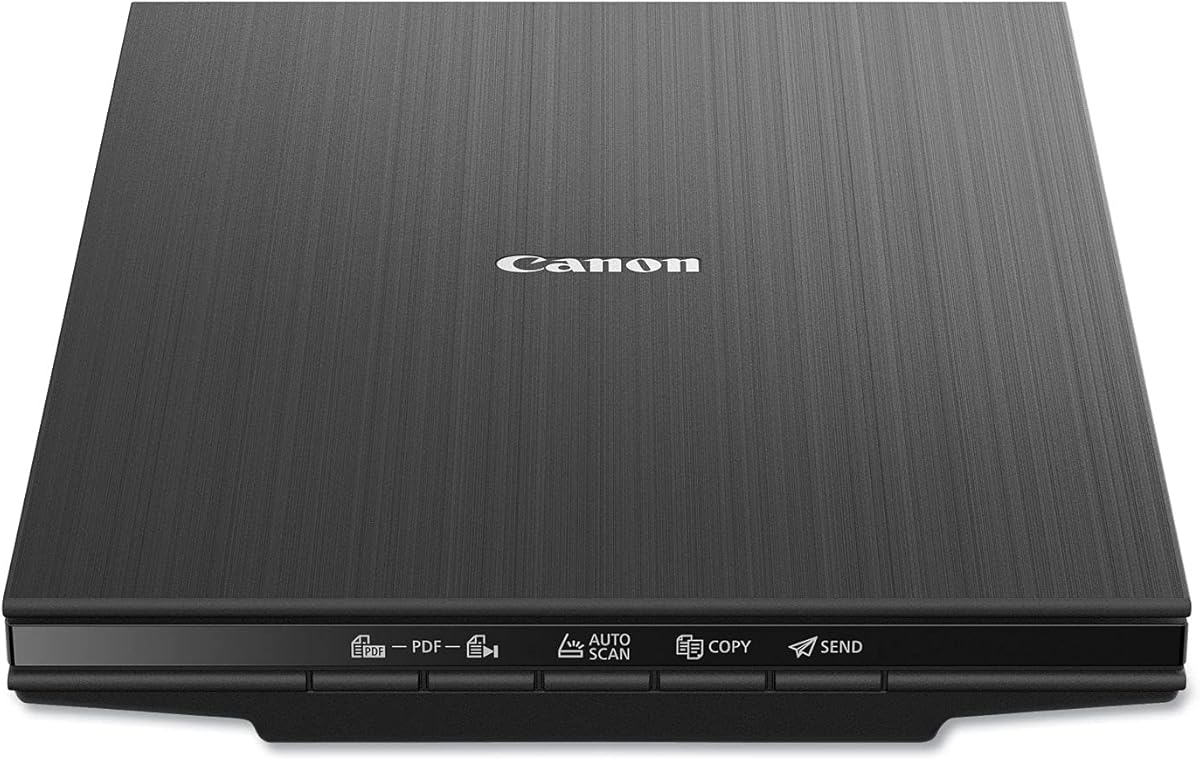
Canon CanoScan LiDE 400
4.1Editor score
4800 x 4800 dpi resolution
Automatic scan mode
Color restore enhancement
Dust removal enhancement
Single-cable USB Type-C
A scanner for old photos should preserve delicate prints while producing sharp, accurate digital copies suitable for sharing, printing, and long-term storage. The right model depends on album size, print dimensions, condition, desired resolution, and how much workflow automation you need, making careful comparison essential.
We compared all ten scanners using their stated specifications, scanning formats, resolution options, document features, connectivity, software, and physical design. The list covers automatic feeders, flatbed models, portable scanners, and professional archival systems, with emphasis on their usefulness for aging photographs.
Each pick reveals a different path to digitizing family memories: the Epson FastFoto emphasizes rapid photo batches, the ScanSnap iX2500 supports advanced workflows, and flatter models suit single prints. Product ratings and availability can change, so verify current specifications and prices before purchasing.
4.1Editor score

4.5Editor score

4.5Editor score
As an Amazon Associate we earn from qualifying purchases.
This side-by-side comparison highlights the scanner types, resolution capabilities, maximum scanning speeds, and workflow features that distinguish each model for preserving old photographs.


The Epson FastFoto FF-680W is built around a demanding reality: most old-photo collections are too large to digitize one print at a time. Its automatic feeder accepts batches of up to 36 photographs and can process them at a stated rate of as quickly as one photo per second at 300 dpi. The 4.5 rating reflects a strong balance between throughput, convenience, and image-focused features.
We may earn a commission when you buy through this link, at no additional cost to you.
Its scanning engine offers three useful resolution choices. The 300 dpi option is appropriate for everyday sharing and manageable file sizes, while 600 dpi TIFF creates a more detailed archival copy. The 1200 dpi setting is intended for enlargement or more demanding reproduction. Automatic enhancement can restore color, reduce red-eye, deskew, crop, and rotate images, reducing the manual effort involved when an entire album contains slightly inconsistent prints.
The duplex capability gives this model an important distinction among fast scanners. It can capture the image on the front of a photograph and any handwritten notes on its reverse during one pass. That makes the FF-680W especially valuable for boxes of family snapshots with identifying information, captions, dates, or dedications. It also handles documents at up to 45 pages per minute and supports 90 images per minute in duplex operation.
There are trade-offs. The unit is more specialized than a basic flatbed, and users must learn how to arrange the feeder and carrier sheet correctly. Photo quality also depends on the condition of the original print and the chosen software settings. Even so, the FF-680W offers the most convincing package for families and dedicated archivists who want to convert large physical collections into organized digital files without manually scanning each photograph.
The 36-photo feeder changes the practical economics of scanning albums. Instead of opening, placing, closing, and confirming one print at a time, users can work through groups of photographs. The stated one-photo-per-second performance at 300 dpi makes it especially useful for creating a broad digital inventory before selectively reshooting favorites at higher resolution.
Automatic color restoration, red-eye reduction, cropping, deskewing, and rotation make the initial batch cleaner and easier to organize. Duplex capture preserves handwritten context that would otherwise be lost, although the original should always be handled gently and checked after scanning for alignment or feeding errors.
We may earn a commission when you buy through this link, at no additional cost to you.
The ScanSnap iX2500 Photo Edition is the most workflow-oriented scanner in this guide. It combines a large touchscreen, wireless connectivity, customizable scan profiles, automatic optimization, and photo throughput of up to 100 photos per minute. Its 4.5 rating reflects an ambitious feature set built for users who want to scan, classify, and deliver images through one connected device.
We may earn a commission when you buy through this link, at no additional cost to you.
Three photo carrier sheets are included specifically for delicate prints and streamlined profile creation. The automatic document feeder holds up to 100 documents or as many as 36 photographs, allowing users to alternate between family records and photo batches. A personal profile can define the desired output, while automatic optimization, naming, and sorting reduce the repetitive work involved in preparing images for computers, mobile devices, or cloud services.
Connectivity is a major strength. Built-in Wi-Fi 6 allows the scanner to send files to compatible computers, phones, tablets, or supported cloud destinations without relying on a local computer. USB-C provides an alternative wired connection, and Quick Menu supports a scan-drag-drop workflow into preferred computer applications. That flexibility makes the unit suitable for a permanent digitization station or a temporary project setup.
The compromises are chiefly cost and complexity. Buyers making a modest number of scans may not use the advanced organization tools or cloud options. The touchscreen menus and profile system also require a short learning period. For a large archive, though, the combination of speed, tailored photo profiles, wireless delivery, and automatic naming makes the iX2500 Photo Edition a particularly capable choice.
A stated maximum of 100 photos per minute makes this model attractive for digitizing boxes of prints in a concentrated session. Three included carrier sheets help support fragile material, while automatic optimizations reduce the need to inspect and correct every image manually before it enters the organization workflow.
Custom profiles make it possible to choose repeatable settings for different photo groups or destinations. The scanner can organize, edit, name, and sort output automatically, and its wireless connection broadens where files can go after capture without making a computer the only possible destination.
We may earn a commission when you buy through this link, at no additional cost to you.
The Epson Perfection V19 II is a straightforward flatbed scanner for people who want strong image detail without an automatic feeder. Its 4800 dpi optical resolution is particularly useful when scanning prints for enlargement. The scanner has a 3.9 rating, placing it behind the faster models in this list, but it remains a practical option for albums, loose photographs, and occasional projects.
We may earn a commission when you buy through this link, at no additional cost to you.
The removable high-rise lid allows the scanner to capture pages from books and photo albums without forcing the binding flat. Easy Photo Fix can restore color to faded photographs with one click, while Epson ScanSmart provides familiar photo and document handling. The device also supports searchable PDFs and editable Microsoft Office documents through optical character recognition.
Simplicity is the V19 II’s defining advantage. One-touch buttons reduce the number of steps, and the compact 3.1-pound body is powered by USB, so it can be moved between rooms or connected to a laptop without a separate power supply. A built-in kickstand allows vertical storage when the scanner is not in use. These details suit a home office or a temporary digitization table.
The obvious limitation is throughput. A flatbed handles one item at a time, and the lid must be raised and lowered for every photograph. A 3.9 rating also suggests that buyers should consider available software and feature updates carefully. Nevertheless, for a modest collection, especially one containing album pages, this is an uncomplicated way to obtain high-resolution scans without buying an automatic document scanner.
The 4800 dpi optical resolution captures enough detail for enlargement and close inspection of fine photographic features. For ordinary screen viewing, it offers more headroom than required, which can be valuable when the original print will be reproduced or restored in another format.
The high-rise removable lid makes album-page scanning more practical by providing clearance above the page. It is still important to avoid forcing a binding and to keep fingers away from delicate emulsion, but the design is better suited to bound material than a narrow sheet-fed scanner.
We may earn a commission when you buy through this link, at no additional cost to you.
The Canon CanoScan LiDE 400 is an affordable, compact flatbed that focuses on the essentials of photo digitization. Its 4800 x 4800 dpi resolution offers ample detail for common scans, while a stated scanning time of as little as eight seconds keeps individual work reasonably efficient. The 4.1 rating indicates a dependable basic option, especially for people who do not need automated batch processing.
We may earn a commission when you buy through this link, at no additional cost to you.
Automatic Scan Mode detects the type of material placed on the glass and adjusts settings accordingly. That reduces the learning curve for less technical users and helps users move between photographs and pages with less intervention. Photo enhancement options include color restoration and dust removal, both useful when handling prints that have faded or accumulated small particles with age.
The LiDE 400 also supports editable, searchable multipage PDFs through its built-in PDF buttons. Its slim profile measures 7.7 by 14.5 inches and only 0.4 inches thick, which makes it easy to store in a drawer or place in a small workspace. A single USB Type-C cable carries both data and power, reducing cable clutter and simplifying setup.
Its limitations are equally clear. It scans only one print at a time, so a large album would take considerably longer than it would with a feeder-based model. The software feature set is also less expansive than that of the ScanSnap or Epson FastFoto. For a modest collection, targeted use, or an affordable first scanner, the LiDE 400 delivers the essential combination of detail, compactness, and ease.
Automatic Scan Mode recognizes whether the scanner is handling a photograph or a document and adjusts the scan accordingly. This is useful when digitizing mixed materials because it reduces repeated manual configuration and creates a more consistent starting point for each item.
At 0.4 inches thick, the LiDE 400 can fit into spaces where a conventional desktop scanner would be inconvenient. The included USB Type-C cable handles power and data, while the slim body can remain ready on a shelf or be stored away between sessions.
We may earn a commission when you buy through this link, at no additional cost to you.
The AMBIR Photo Scanner bundle is designed specifically around the repetitive work of digitizing printed photographs. It offers 300 and 600 dpi modes, automatic cropping and deskewing, and support for common print dimensions ranging from small snapshots to 8 x 10-inch photographs. Its 4.3 rating suggests that buyers appreciate the photo-specific setup and included accessories.
We may earn a commission when you buy through this link, at no additional cost to you.
A major advantage is the bundled cleaning kit. It contains a bellows-style blower, microfiber cloth, anti-static brush, and protective carrier sheet. These tools help users remove dust and handle fragile prints more responsibly before they enter the scanner. The carrier provides a protective layer, while the cleaning supplies address a basic part of old-photo care that software cannot solve after grit has reached the sensor.
Picture Studio by AMBIR expands the workflow beyond capture. It can import existing files from Apple Photos, Google Photos, digital cameras, and memory drives, then help users organize everything into custom albums. Tags, favorites, notes, automatic enhancement, faded-photo restoration, filters, and borders are included. Detailed controls for brightness, contrast, exposure, sharpness, and gamma provide additional adjustment when an automatic result needs refinement.
The scanner connects by USB for both power and data, and it is compatible with Mac and PC. The trade-offs are that only 300 and 600 dpi choices are listed, and no wireless connection is specified. For a collection centered on standard and panoramic prints, this photo-oriented bundle offers an unusually complete combination of scanning hardware, organization software, and care accessories.
Dust and debris can scratch prints or appear in the final image, and the included blower, cloth, brush, and carrier sheet help manage that risk. Cleaning should always be performed by an experienced owner who knows whether the print surface can tolerate gentle contact.
Picture Studio by AMBIR can bring imported camera files and existing photo-library images into the same organization environment. Albums, tags, favorites, notes, restoration tools, and detailed image controls make it easier to continue building a family archive after the physical prints have been scanned.
We may earn a commission when you buy through this link, at no additional cost to you.
The Epson Perfection V39 II is a flatbed scanner aimed at users who want detailed photo capture and convenient restoration without a large automatic workflow. Its 4800 dpi optical resolution is well suited to enlarging and close reproduction. The 3.9? No—the V39 II carries a 3.7 rating, the lowest among these ten products, so buyers should weigh its core features against that comparatively limited customer feedback.
We may earn a commission when you buy through this link, at no additional cost to you.
Its most relevant old-photo feature is Easy Photo Fix, which restores color to faded photographs with one click. Epson ScanSmart also supports sending scans to cloud storage services and stitching oversized images together. One-touch buttons reduce the number of steps, and the stated ability to scan a letter-size document in as little as 10 seconds keeps routine work efficient.
The removable high-rise lid makes the scanner suitable for books, albums, artwork, illustrations, and other materials that need clearance. USB power removes the need for a separate power brick and allows the compact scanner to move with a computer. It is therefore a reasonable option for a temporary home setup or an archiving session that does not justify a feeder-based model.
The main drawbacks are its relatively low rating and its one-at-a-time workflow. It also offers fewer dedicated photo-management features than the AMBIR or ScanSnap products in this guide. Buyers should confirm that its software suits their computer system and intended outputs. For users who prioritize image detail, simple restoration, and compact handling over batch speed, the V39 II remains a capable basic flatbed.
A one-click restoration function can revive color in prints that have faded over decades, reducing the need for separate editing software during basic digitization. Restoration should supplement rather than replace careful inspection because aggressive enhancement can also amplify dust, scratches, or unnatural color shifts.
The scanner accommodates photographs, artwork, illustrations, books, and documents. Its high-rise removable lid helps with album pages and bound material, while the USB-powered body makes it convenient to place near the computer where image files will be reviewed and organized.
We may earn a commission when you buy through this link, at no additional cost to you.
The ScanSnap iX2500 is a general-purpose scanning workstation with strong relevance to old-photo projects. Its 100-sheet feeder, 45 pages-per-minute double-sided scanning, large touchscreen, and Wi-Fi 6 connectivity are designed for busy document workflows. The 4.3 rating reflects a capable and polished machine, although buyers should note that it is not the photo-specific edition in this guide.
We may earn a commission when you buy through this link, at no additional cost to you.
Automatic optimizations, naming, and sorting can reduce the work involved in naming many individual files. Personalized touchscreen profiles provide repeatable destinations and settings, while Quick Menu lets users move scans into preferred computer applications. Files can go to a PC, Mac, mobile device, or supported cloud service, giving the scanner flexibility when the archiving computer is in another room.
Its paper-handling design includes a brake roller system, a multi-feed sensor for detecting stuck pages, and skew detection. Those protections are valuable when documents are fragile or uneven, and they may also help maintain orderly feeding when photographs are handled carefully between sheets. The USB-C connection supplies a modern wired alternative to Wi-Fi.
Compared with the iX2500 Photo Edition, this model emphasizes documents, receipts, business cards, and general archival records. Its listed photo capacity is not explicit, so a prospective photo-focused buyer should verify compatibility and feeder guidance before committing. For a household that wants one sophisticated scanner for both paperwork and photographs, the touchscreen, fast feeder, and flexible destinations make this a compelling all-purpose choice.
The combination of a 100-sheet feeder, double-sided scanning, and photo support allows one device to handle the records surrounding a photo collection as well as selected prints. Buyers can create separate profiles for documents and images, reducing the need for multiple scanners on a shared archive desk.
The brake roller, multi-feed sensor, and skew detection are designed to feed pages smoothly and identify pages that stick together. These features can protect both originals and workflow efficiency, although photographs still require careful orientation and gentle handling.
We may earn a commission when you buy through this link, at no additional cost to you.
The Epson Workforce ES-50 is built for portability rather than photo throughput. It is compact, lightweight, USB powered, and can scan a single page in as quickly as 5.5 seconds. With a 4.3 rating, it serves well as a traveling or space-saving document scanner, though it is not among the most purpose-built choices for fragile photographs.
We may earn a commission when you buy through this link, at no additional cost to you.
The sheet-fed design accepts documents up to 8.5 by 72 inches, which is useful for long receipts, narrow records, and unusual paper formats. Epson ScanSmart supports review and saving, while Nuance OCR creates searchable PDFs and editable Word and Excel files. Scans can also be sent to cloud storage, and automatic feeding mode combines inserted pages into a single file.
Its portability is genuine: no batteries or external power supply are required, and a standard USB 2.0 connection handles operation. This makes the ES-50 convenient for collecting documents at another location or working with relatives who live far from a home archive. It can also serve as a companion scanner for writing on the back of older photographs.
Old photographs are not the ES-50’s strength. There is no listed photo-specific resolution, automatic color restoration, protective carrier system, or batch photo capacity. The flat sheet path may be inappropriate for prints with surfaces that should not contact the rollers. Its 4.3 rating reflects a useful portable document tool, but photograph owners should choose a photo-focused model unless portability is the overriding priority.
The ES-50 can be carried to relatives, storage facilities, or community events without the need for batteries or a dedicated outlet. That portability makes it possible to collect records while the source material is available rather than postponing the task until every item reaches one archive desk.
Because the model can capture handwritten notes on paper, it may be useful for documenting information written on the back of photographs. Only prints with surfaces safe for contact with the feed rollers should be used, and fragile prints are better handled by a dedicated photo scanner.
We may earn a commission when you buy through this link, at no additional cost to you.
The Epson Perfection V850 Pro is the specialist choice for demanding photographic reproduction. Its 6400 dpi resolution, 4.0 Dmax tonal range, and dual-lens system place it well above general-purpose scanners in technical ambition. The 4.4 rating is strong, but its exceptional cost means it is intended for users who can justify the investment through extensive or especially valuable work.
We may earn a commission when you buy through this link, at no additional cost to you.
The dual-lens system selects between two lenses to optimize results. That configuration supports both detailed photography and the tonal demands of dense originals, including shadow areas and subtle color transitions. The stated 4.0 Dmax figure is particularly relevant when a photograph contains broad dark regions that need smooth gradation rather than visible banding.
Digital ICE addresses dust and small imperfections on the scanned image. Combined with 6400 dpi capture, it can produce files suitable for demanding enlargement, publication, reproduction, or preservation of especially rare images. The flatbed format also gives the operator direct control over placement, allowing an unusual shape or album page to be positioned carefully on the glass.
The trade-offs are substantial. This is a premium professional model rather than a convenient choice for casually scanning a few snapshots. Its listed operating system support includes older Windows and Mac OS X versions, so current compatibility must be verified before purchase. For institutions, dedicated photographers, or families preserving irreplaceable originals, however, the V850 Pro offers the highest level of technical capability in this guide.
The 6400 dpi maximum captures dense fine detail that is valuable when enlarging small source prints or reproducing visually complex originals. The practical benefit depends on the quality of the photograph and the condition of the scanner lens, so routine cleaning and careful focus remain important.
The dual-lens design chooses an optical configuration intended to optimize different scanning needs. Combined with a 4.0 Dmax range, it can preserve subtle tonal transitions and shadow detail that simpler scanners may render with less nuance.
We may earn a commission when you buy through this link, at no additional cost to you.
The Canon CanoScan LiDE110 is an entry-level flatbed for buyers who want a straightforward way to convert loose photographs and documents without investing in advanced automation. Its 2400 x 4800 dpi resolution can produce useful scans for ordinary viewing and family sharing. The 4.3 rating indicates that its core functionality is well received.
We may earn a commission when you buy through this link, at no additional cost to you.
Automatic Scan Mode detects the material on the glass and adjusts the settings. That automation keeps the process approachable, while the Advanced Z Lid expands to accommodate bulky objects such as books and album pages. A single USB cable supplies both data and power, so the scanner requires little setup and avoids unnecessary desk clutter.
The scanner can handle a variety of color documents and photographs, including pages from thicker books where clearance matters. Its stated letter-size color scan time of approximately 18 seconds is acceptable for occasional work. The basic workflow makes it suitable for first-time users who want a recognizable home scanner rather than a complex photo-management platform.
Limitations include slower throughput and fewer advanced capabilities than most newer models in the guide. It lacks the batch feeding, wireless workflows, detailed restoration tools, and high-resolution options offered by several alternatives. For a small collection, basic copies, or mixed household documents, the LiDE110 is functional and approachable, but users with extensive archives should consider a faster, more photo-focused model.
Automatic Scan Mode reduces the number of decisions a new user must make at the computer. It detects the item and adjusts the scan, making the LiDE110 convenient for occasional photo digitization and mixed document tasks.
The Advanced Z Lid extends above the scanning bed to create clearance for bulky or bound material. This makes album-page capture more practical than with a low-profile flatbed, provided the spine is not forced and delicate surfaces are handled carefully.
We may earn a commission when you buy through this link, at no additional cost to you.
The right scanner depends on collection size, photograph dimensions, condition, intended output quality, computer setup, and how much hands-on control you want during the workflow.
A flatbed provides maximum control over placement and is well suited to loose prints, album pages, artwork, and unusual shapes. It gives you time to align fragile photographs and inspect the glass before beginning. An automatic feeder is more efficient for large collections because it can process batches, but photographs must be arranged carefully and kept away from components that could damage their surfaces. Sheet-fed scanners also demand particular attention to orientation and feed clearance. The best choice depends less on image quality alone than on how many prints need to be scanned and whether they can safely travel through a feeder.
Choose a flatbed for selective or delicate work. Choose an automatic photo scanner for large albums.
Resolution determines how much detail the scanner can capture. A 300 dpi setting often works well for ordinary screen viewing and sharing, while 600 dpi provides a stronger balance of detail and file size for preservation and moderate enlargement. A 1200 dpi option is useful for prints that will be reproduced at a larger size, and professional models may offer still greater resolution. More resolution is not automatically better, because it also creates larger files and demands more storage. Match the setting to the final destination rather than scanning everything at the highest available resolution without considering workflow.
Choose 300 dpi for sharing, 600 dpi for archives, and higher only when needed.
A scanner for old photos should accommodate the dimensions people actually own. Standard prints may include 3 x 5, 4 x 6, 5 x 7, and 8 x 10 inches, along with postcards, Polaroid-style formats, panoramas, and small snapshots. Automatic models may use carrier sheets to align mixed sizes, while flatbeds generally handle any size that fits on the glass. Check whether the scanner supports album pages, panoramic images, and mixed batches if those formats are present. A model that accepts a broad range of sizes will reduce manual cropping and make large family collections easier to process.
Confirm support for every standard print, postcard, and panorama format in the collection.
Old photographs often have faded colors, minor dust, skewed placement, red-eye, or cropping issues. Automatic enhancement can correct these problems quickly, while dedicated restoration functions may restore color more aggressively. Built-in tools are convenient, but the best result often comes from reviewing a scan rather than accepting every adjustment without inspection. A model that also supports manual editing or detailed image controls gives users more control over subtle corrections. Dust removal is especially useful, though physical cleaning of the print and scanner glass remains important because software cannot reliably remove every scratch.
Prioritize restoration tools for faded prints, but still inspect every edited scan.
USB is the simplest and most broadly compatible connection for a single-computer archive. Wireless connectivity makes it easier to place a scanner near the physical collection and send files to a computer, mobile device, or supported cloud service. Touchscreen profiles and automatic naming can streamline a large job, but they may also add complexity for occasional use. Consider where the originals are stored, where the digital archive will live, and whether your software supports the scanner’s destination methods. A convenient connection is valuable only if it leads to files you can reliably find and back up afterward.
Choose USB for simplicity or wireless for flexible, computer-free capture.
Photographs often arrive with context: handwritten notes, letters, receipts, identification documents, and family records. A scanner with duplex capture can preserve writing on the back of a print, while OCR can make documents searchable and editable. Automatic feeders are useful for records, and editable PDF creation helps with long-term organization. These features do not make a general document scanner automatically superior for photography, but they can make one device more useful for a complete household archive. Decide whether digitizing the surrounding story is part of the project or whether the photographs should remain the sole focus.
Consider duplex capture and OCR when captions and family records matter.
Age makes photographs vulnerable to scratches, fingerprints, fading, and trapped debris. Carrier sheets, microfiber cloths, soft brushes, anti-static tools, and careful dust-removal systems can reduce risk. A removable lid with extra clearance helps with album pages, while flatbeds allow precise positioning without feeding a print through rollers. Avoid pressing down hard on fragile originals and never clean an emulsion surface unless you know it is safe to do so. The scanner’s protective features are helpful, but responsible handling and clean storage remain more important than any automated correction.
Treat cleaning supplies and carrier sheets as essential protective tools, not optional extras.
Scanning is only the beginning of an archive project. Look for software that can name, sort, edit, and route files, especially when scanning many photographs. Cloud export is convenient, but a local backup plus a second copy is wise for files that cannot be replaced. Decide whether you want TIFF or another high-detail format for preservation, JPEG for convenient sharing, or both. Confirm that the software works with your computer and that its file naming method matches your organizational system. The goal is a repeatable process, not simply a folder full of unidentified images.
Plan naming, storage, and backups before processing a large box of prints.
Begin by sorting photographs without removing staples, glue, or adhesive unless you are prepared to repair fragile originals safely. Dust the print gently with a suitable soft tool, clean the scanner glass according to its instructions, and connect the scanner before arranging the first batch. Choose an output folder and a naming pattern so every file has a clear place and purpose from the beginning.
For an automatic photo scanner, use the supplied carrier sheet and load only compatible print sizes with consistent orientation. Scan a small representative batch first, inspect color, sharpness, cropping, and rotation, and make adjustments before processing the remainder. For a flatbed, clean the glass, position the print within the usable area, preview the scan, and record any settings needed for the next print of the same type.
After capture, review every file for skips, double feeds, dust, color casts, and incorrect crops. Save an untouched preservation copy when your workflow allows it, then create a smaller sharing copy if necessary. Store originals in archival-safe sleeves and folders away from heat, moisture, and strong light. Keep at least two digital copies on separate storage locations, verify that files open correctly, and retain the physical prints because no digital workflow completely replaces the source material.
A 300 dpi setting is generally suitable for ordinary viewing and online sharing. A 600 dpi scan preserves more detail and is a better archival choice when moderate enlargement or reproduction may be needed. Use 1200 dpi or higher for unusually small prints, especially valuable originals, or planned large-format output, because those files require more storage and processing time.
Color is the safest default for an unknown collection because it preserves details that a grayscale conversion cannot recreate. Black-and-white or sepia conversion can create an attractive presentation copy after a color master has been captured. Keep the color version, adjust it carefully, and export a separate edited version rather than replacing the preservation file.
Some document scanners can capture photographs, but their rollers, feed path, and default settings may not be ideal for fragile or glossy prints. A photo-specific scanner with carrier sheets is generally safer for batches, while a flatbed provides the most control over placement. Avoid feeding prints with loose emulsion, embedded staples, or damaged edges.
Use a consistent naming system that includes a family, event, date, or original album identifier. Add the original print number so each digital file remains linked to its source. Store files in clearly named folders, then create copies for sharing and preservation. Record any corrections in a separate document so future editors know what was changed.
Scanning can improve the appearance of faded color, uneven brightness, minor dust, and some alignment issues through software enhancement. It cannot recover missing image information, erase deep physical scratches, or restore areas that were completely destroyed. A high-quality scan provides the best foundation, while cautious editing should improve the copy without making the original look unnatural.
Yes, retaining the originals is strongly recommended. Digital files can suffer from corruption, accidental deletion, format obsolescence, or lost storage devices, while the physical print may contain texture or context that a scan cannot fully reproduce. Store originals in clean archival-safe enclosures under stable temperature and humidity conditions.
Automatic scanning is usually faster when every page can be handled safely, while a flatbed is preferable for loose, unusual, or especially fragile photographs. Album pages often need flatbed clearance and careful book positioning, but loose prints in a batch can be processed more quickly through an automatic photo feeder. The best choice depends on the collection’s physical condition.
Storage requirements vary greatly with resolution, file format, and the number of prints. JPEG files are convenient for sharing, while TIFF commonly preserves more image information but consumes substantially more space. Use a dedicated archive drive or cloud account with enough capacity for the collection plus multiple backup copies, and verify that your organization can open the selected file format.
The Epson FastFoto FF-680W stands out as the most versatile all-around choice for large photo collections, combining quick batching, duplex capture, restoration tools, and flexible connectivity. The ScanSnap iX2500 Photo Edition leads advanced workflows with its touchscreen, carrier sheets, wireless delivery, and up to 100 photos per minute, while the Canon CanoScan LiDE 400 offers a straightforward, affordable flatbed approach.
Before buying, prioritize the collection’s size and physical condition. Choose an automatic photo scanner when many prints can be safely batched, a flatbed when individual placement and album-page clearance matter most, and higher resolution when enlargement or faithful reproduction is important. Document features, OCR, organization tools, and cloud destinations should support the project rather than distract from the photographs.
Finally, check the scanner’s current specifications, software compatibility, connectivity options, warranty, and current price before ordering. Product ratings and availability can change over time, and the right value depends on your workflow. Whatever model you select, pair careful physical handling with organized naming and multiple backups to preserve both the original prints and their digital copies.