
PCIe 4.0 x4 64Gbps OCuLink eGPU Dock
4.5Editor score
PCIe 4.0 x4 bandwidth
Detachable 19.7-inch cable
Open-frame GPU support
Our Oculink Enclosure guide compares ten docks and adapters for bandwidth, cable length, GPU support, power options, portability, and overall compatibility.
An Oculink enclosure can add desktop-class graphics to a compatible laptop, mini PC, or handheld without relying on a USB-C graphics connection. The right enclosure depends on native interface support, cable length, GPU clearance, power configuration, and whether you value portability or a more rigid, permanent installation.
We compared all ten products in the supplied range by examining their interface type, stated PCIe bandwidth, included cable, power requirements, graphics-card support, structural design, compatibility, and special features. The list includes conventional eGPU docks, compact models, an MCIO-capable enclosure, an NVMe adapter, and a USB-C SSD enclosure for comparison.
Each review shows what makes a product distinctive and also identifies missing components or restrictions that may affect the buyer. Ratings and specifications reflect the available product information, while availability and prices can change, so readers should confirm the latest listing and current hardware requirements before purchasing.
4.5Editor score

5.0Editor score
5.0Editor score
The comparison below highlights each product's principal interface, bandwidth, cable, power design, and intended use, making the differences easier to compare before checking current listing details.


This OCuLink dock combines a 4.5 rating with a flexible open-frame design and a stated PCIe 4.0 x4 connection rated at 64Gbps. It is intended for laptops, mini PCs, and handhelds that expose a native OCuLink interface, making interface compatibility more important than the enclosure's attractive LED indicators or broad GPU compatibility.
We may earn a commission when you buy through this link, at no additional cost to you.
The package includes the SFF-8612 dock enclosure, a detachable 19.7-inch SFF-8611 cable, and 12 screws. Its thin, shielded cable is designed to reduce interference, while detachable ends make storage easier. The open frame accommodates different GPU sizes, and the ATX bracket helps stabilize the power supply and card. LED indicators, automatic startup, and a forced-start option add practical monitoring and control features.
There are important exclusions. The GPU and ATX power supply are not supplied, and compatibility with USB-C, USB4, or Thunderbolt is expressly excluded. Users without a native SFF-8611 or SFF-8612 port need a separately purchased OCuLink adapter and an appropriate spare M.2 NVMe or desktop PCIe slot. Hot-plugging is not supported, the recommended power headroom is approximately 40 percent, and some screwdriver-assisted assembly is required.
This is a strong choice for a builder who wants a conventional external GPU dock without a rigid full case. It suits owners of a compatible OCuLink-equipped mini PC or handheld who already own a suitable graphics card and ATX power supply. For the most balanced purchase, buyers should also confirm enclosure dimensions, cable routing, operating-system support, and driver requirements before ordering.
The open-frame construction is the enclosure's defining advantage because it avoids the GPU-length restrictions associated with many compact cases. It also leaves the card and power supply visible, which can make inspection and cable management easier, although buyers who want a tidier setup may prefer a more enclosed design.
The 19.7-inch cable uses a thin, flat, shielded construction and detachable ends, making it easier to pack than a permanently attached lead. Buyers should still route it carefully, avoid sharp bends, and never connect or disconnect it while the computer is operating.
We may earn a commission when you buy through this link, at no additional cost to you.
This compatible eGPU dock earns a 4.4 rating and is built around an SFF-8612-to-PCIe x16 enclosure, a detachable connector design, and a stated PCIe 4.0 x4 bandwidth of 64Gbps. It is most relevant to compact systems with a native OCuLink port and users who prefer a dock that can be separated for easier storage.
We may earn a commission when you buy through this link, at no additional cost to you.
A notable feature is the PCB's 10-micron gold-plated contacts, which the product information says are intended to improve conductivity and reduce resistance associated with oxidation. The included 19.7-inch male-to-male SFF-8611 cable is thin, flexible, fully shielded, and intended to minimize interference. Multi-status LEDs provide visual feedback, while the enclosure can accept graphics cards of different sizes and uses a dual-screw ATX mounting arrangement for stability.
The dock does not include a graphics card or power supply, so the total setup cost must account for both components. It supports standard ATX power only, and OCuLink cannot be hot-plugged; the computer must be switched off before the cable is removed. The description also does not spell out every host compatibility detail, making confirmation of the exact system interface essential.
Buyers who value connector durability, detachable storage, and visible operating status should give this model serious consideration. It is best suited to an OCuLink-equipped laptop or mini PC owner who already owns a compatible GPU and ATX PSU. A native SFF-8611 or SFF-8612 connection is the deciding requirement, not USB-C or Thunderbolt alone.
The gold-plated contact approach is a sensible choice for a frequently disconnected interface. Since the dock uses detachable ends, contact quality matters even more, and the product information specifically links the plating to conductivity and reduced oxidation-related resistance.
Multi-status LED indicators give users immediate visual feedback when checking whether the dock has power or establishing a connection. They are particularly useful in an open setup where the card, power supply, and data cable remain visible.
We may earn a commission when you buy through this link, at no additional cost to you.
This straightforward OCuLink eGPU enclosure has a 5.0 rating and a clear feature set: PCIe 4.0 x4 bandwidth, OCuLink-to-PCIe x16 conversion, an open-frame design, and a 19.7-inch shielded cable. It offers a polished combination of simple assembly guidance and broad support for AMD, Intel, and NVIDIA graphics cards.
We may earn a commission when you buy through this link, at no additional cost to you.
The package contains the enclosure, a 50-centimeter SFF-8611 OCuLink cable, and a user manual. The cable incorporates a metal shielding layer and EMI-shielded conductive polymer to support stable high-speed transmission. The open frame removes strict GPU-length limitations, and the enclosure works with a standard ATX power supply so builders can use a suitable card already in their possession.
The product is a dock rather than a complete graphics system, so a graphics card and ATX PSU must be purchased separately. Appropriate graphics-card drivers should be installed before first use to improve detection and display behavior. OCuLink does not support hot-plugging, which means both the host computer and the external setup must be fully powered down before changing the connection.
This is our top overall pick because it presents the essential enclosure features without an unnecessarily complicated feature set. It works particularly well for a mini PC or OCuLink-equipped laptop user who values a shielded cable, a user manual, unrestricted card clearance, and a straightforward 64Gbps interface. The open frame and separate ATX power requirement are the main trade-offs.
The combination of metal shielding and EMI-shielded conductive polymer is intended to preserve signal integrity over a high-speed PCIe connection. That focus makes the dock attractive for demanding graphics, rendering, and AI workloads, provided the host and cable are installed correctly.
The enclosure, cable, and user manual form a compact package that keeps procurement focused. New builders should still prepare their own ATX PSU, compatible GPU, appropriate power leads, and graphics-card drivers before beginning installation.
We may earn a commission when you buy through this link, at no additional cost to you.
The AOOSTAR EG02 stands apart as a compact OCuLink graphics dock with a 5.0 rating. Its defining specification is support for a native OCuLink port using PCIe 4.0 x4, while its physical dimensions of 26.8 by 17.5 by 2.2 centimeters make it more compact than many open-frame alternatives.
We may earn a commission when you buy through this link, at no additional cost to you.
Power supply flexibility is the EG02's most useful differentiator. It supports both ATX and SFX power, allowing a builder to select between a standard desktop PSU and a smaller SFX unit depending on the graphics card and available space. The product information specifically warns buyers to confirm that their device has the required OCuLink port before purchasing.
The supplied description is less detailed than those for several other docks in this roundup. It does not clearly enumerate the included cable, screws, brackets, or manual, and it does not provide a full account of operating-system support, hot-plugging behavior, or graphics-card dimensions. Those omissions make the current listing and package contents particularly important to check before buying.
The EG02 is a good fit for builders who want a smaller, tidier external graphics solution and value the ability to use either ATX or SFX power. It is less appropriate for a system with only USB-C, Thunderbolt, or USB4, because native OCuLink support is explicitly required. It also appeals to users who prefer a defined enclosure over a large exposed frame.
The stated dimensions make the EG02 appealing for desks where a large open-frame eGPU station would be inconvenient. Compactness does not guarantee that every large GPU will fit, so buyers should check the enclosure's internal clearance and component arrangement against their intended card.
Supporting two common desktop power-supply formats gives the dock more flexibility than standard-ATX-only alternatives. A smaller SFX PSU may suit a compact installation, while an ATX unit may offer more capacity for a power-hungry graphics card.
We may earn a commission when you buy through this link, at no additional cost to you.
This 4.5-rated dock is distinguished by its 39.4-inch SFF-8611 cable, the longest included connection among the conventional PCIe 4.0 x4 enclosures in the list. The extra reach is useful when the computer and graphics enclosure cannot sit immediately beside one another on a desk or work surface.
We may earn a commission when you buy through this link, at no additional cost to you.
The dock converts OCuLink to PCIe x16 and offers stated PCIe 4.0 x4 bandwidth of 64Gbps. Its cable is male-to-male, only 0.5 millimeters thick, flexible, and fully shielded for EMI suppression. An independent side bracket secures the ATX power supply and GPU, reducing wobble in an otherwise open-frame arrangement. Multiple status LEDs, automatic startup, and a manual forced-start mode improve everyday control.
Compatibility extends across AMD, Intel, and NVIDIA cards, and the open frame is described as accepting any GPU size. However, the graphics card and ATX power supply remain separate purchases. The dock does not support hot-plugging, recommends PSU wattage around 40 percent above the GPU's full-load requirement, and requires the appropriate graphics drivers before first use.
This is a sensible selection for a mini PC or laptop user who needs more distance between the host and enclosure. It also works well for gaming, 3D modeling, rendering, and AI workloads when the host has native OCuLink. A buyer with a crowded desk or a short reach may prefer the 29.5-inch or 19.7-inch alternatives, but the added length is valuable in a stationary workspace.
A 39.4-inch lead allows the external graphics station to sit under a desk, on a separate shelf, or farther from a docked laptop. It should still be routed without sharp folds or tension, and the enclosure should remain in a ventilated location.
The independent side bracket holds the ATX power supply and graphics card more securely than an entirely unsupported frame. That helps reduce movement during cable changes, installation, and use, although it does not turn the enclosure into a fully protected case.
We may earn a commission when you buy through this link, at no additional cost to you.
This eGPU dock offers a middle-ground cable length at 29.5 inches and carries a 4.5 rating. Its 64Gbps PCIe 4.0 x4 interface and OCuLink-to-PCIe x16 conversion make it appropriate for a compatible laptop or mini PC that needs a substantial but not excessive separation between host and graphics enclosure.
We may earn a commission when you buy through this link, at no additional cost to you.
The included male-to-male SFF-8611 cable is thin at 0.5 millimeters and uses full shielding and EMI suppression to promote stable transmission. Like the longer 39.4-inch model, this dock includes an independent side bracket to stabilize the ATX power supply and GPU. The open-frame design avoids card-length restrictions, while LED indicators and automatic or forced operating modes provide useful status and control options.
The buyer must add a suitable GPU and ATX power supply. The product information recommends power capacity around 40 percent higher than the GPU's full-load draw, requires suitable drivers for correct display behavior, and warns against hot-plugging. Native OCuLink is the essential connection, and the dock should not be treated as a general USB-C upgrade.
This model is a good middle choice for a permanent desktop arrangement where a 19.7-inch lead is too short but a 39.4-inch cable is unnecessary. It offers the same 64Gbps interface and open-frame flexibility as the longer model while remaining easier to manage. It is especially appropriate for users who already own compatible graphics hardware and want a balanced stationary eGPU layout.
The 29.5-inch cable provides enough separation for many laptop stands, compact desks, and nearby shelving arrangements. It is a practical choice when keeping the system tidy matters, but a shorter lead remains easier to transport and generally simpler to route.
The combination of a shielded cable, status LEDs, automatic startup, and a forced-start mode makes the dock practical for repeated desktop use. Builders should still install the correct drivers and follow the power-off requirement whenever the OCuLink connection is changed.
We may earn a commission when you buy through this link, at no additional cost to you.
This OCuLink-to-M.2 adapter is included to show that an Oculink enclosure setup can extend beyond external graphics. It is an internal converter for one M.2 NVMe PCIe SSD, connecting the drive through SFF-8611 or SFF-8612 OCuLink rather than through an external graphics-card cradle.
We may earn a commission when you buy through this link, at no additional cost to you.
The adapter supports 2280, 2260, 2242, and 2230 NVMe formats and uses PCIe 4.0 signaling with a stated transfer rate up to 64Gbps. It is also backward compatible with PCIe 3.0. The product information describes a Hyper Kit storage controller and an Ultra PCIe card, allowing the M.2 converter to be installed inside a system through an OCuLink interface.
This is not a universal protocol converter. It cannot convert NVMe to SATA or SAS, nor can it convert NGFF, SATA, or SAS to OCuLink. It also does not work with SAS or Slimline SAS hard drives. Its listed configuration options include one OCuLink connection with one NVMe device or two OCuLink connections with two NVMe devices, subject to the hardware arrangement and available ports.
The product is most appropriate for a compact PC builder who needs to place an NVMe drive in an unusual internal location and already has suitable OCuLink connectivity. It is not a substitute for an eGPU enclosure, but it demonstrates the flexibility of the interface for high-speed storage and other PCIe expansion tasks.
The adapter can give a compact system another way to use a high-speed NVMe drive when internal storage placement is difficult. Its value comes from native PCIe signaling rather than a slower external storage protocol, but the exact system layout must be checked carefully.
The adapter is designed specifically around NVMe PCIe devices. It does not translate SATA or SAS storage to OCuLink, so compatibility claims should not be generalized beyond the supported M.2 NVMe formats.
We may earn a commission when you buy through this link, at no additional cost to you.
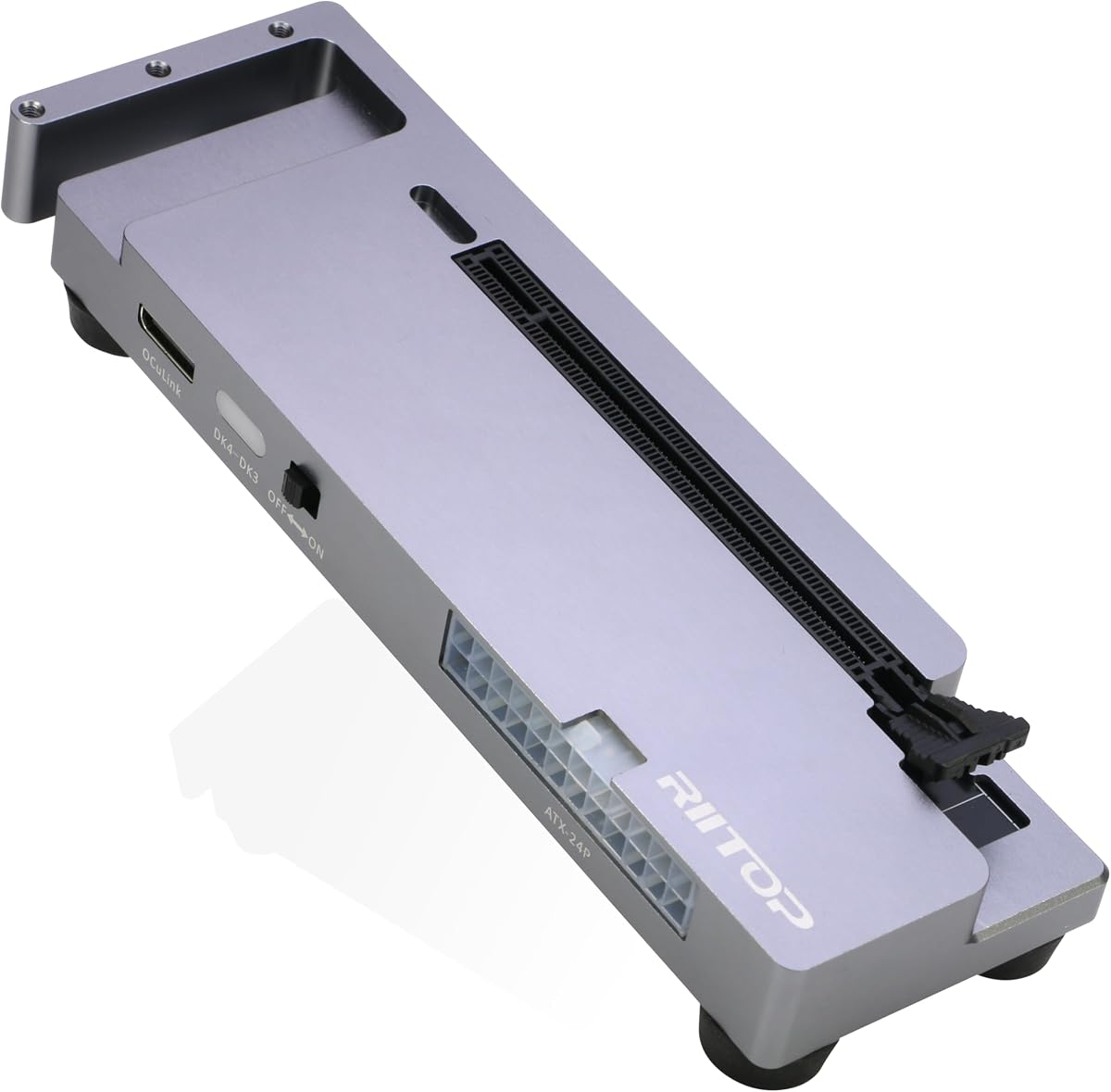
The RIITOP OCuLink eGPU Dock combines a 5.0 rating with broad platform support and a flexible power design. It converts a native SFF-8612 OCuLink connection into a PCIe x16 graphics-card enclosure, making it a strong premium option for compact systems that need access to a full-size desktop GPU.
We may earn a commission when you buy through this link, at no additional cost to you.
The open design imposes no stated GPU-size restriction and supports current NVIDIA RTX 50-series and AMD RX 7000-series families, along with other compatible cards. It accepts ATX or SFX power, includes a detachable SFF-8611 cable, and provides fixing pillars, a power-supply bracket, screws, and a manual. Its stated operating-system support covers 64-bit Windows 10 and 11, Linux, and Mac OS.
The Mac support limitation is important: the dock is described as compatible with Mac OS 10.13.4 and later, but only with AMD graphics. NVIDIA cards are not supported on Mac OS. The OCuLink interface also does not support hot-plugging, and its fixed-lock connector must be released before disconnection. Users must provide a PCIe 4.0 x16 card, matching ATX or SFX PSU, display connection, and required power leads.
This dock is our premium pick because it combines a polished open design, flexible PSU selection, strong graphics-card positioning, and unusually broad operating-system guidance. It is best for an experienced builder who wants a complete, organized eGPU station and has native OCuLink. The hardware requirements are more extensive than those of a compact adapter, but the included supports and instructions create a more structured build.
Support for Windows, Linux, and Mac systems makes this dock useful across a wider range of compact computers than a Windows-only accessory. The Mac exception is specific: the listing says AMD graphics can be used, while NVIDIA graphics are not supported on Mac OS.
Dedicated fixing pillars, a power-supply retention bracket, a detachable cable, and a user manual give the enclosure a more orderly installation process. These details help reduce the trial-and-error common to building an eGPU station around a more basic open frame.
We may earn a commission when you buy through this link, at no additional cost to you.
This enclosure is the most unconventional eGPU dock in the group because it supports OCuLink, MCIO, and an optional dual-OCuLink mode that can reach PCIe 4.0 x8 and 128Gbps. Its standard included configuration uses a 50-centimeter SFF-8611 cable for PCIe 4.0 x4 operation, offering a potential upgrade path beyond ordinary x4 docks.
We may earn a commission when you buy through this link, at no additional cost to you.
The structure uses 3D-printed ASA-GF, a glass-fiber-reinforced, heat-resistant material, and is described as sturdier than a conventional lightweight frame. Rear-routed power cables create a cleaner front, while a conveniently placed power button, LED indicators, and auto-start or forced-start modes improve usability. The open frame supports different GPU sizes, and the package includes 12 screws, a cable, and a screwdriver.
The optional higher-bandwidth configuration is not fully equipped out of the box. A separate MCIO-to-dual-OCuLink cable is required for PCIe 4.0 x8, so buyers should not assume the enclosure delivers 128Gbps from the standard package. The GPU and ATX PSU are also excluded. Hot-plugging is prohibited, power headroom of around 40 percent is recommended, and drivers must be installed before use.
This enclosure is ideal for an enthusiast with an MCIO-equipped system or a plan to add the appropriate cable later. Its reinforced construction and hidden rear cabling also appeal to users who want a functional external GPU station without a conventional desktop case. For everyone else, the standard 19.7-inch OCuLink configuration offers a 64Gbps connection.
The enclosure's MCIO and dual-OCuLink support distinguishes it from standard x4 docks. Buyers seeking that expanded mode must obtain the correct cable, ensure the host can negotiate the higher lane configuration, and confirm that the GPU and workload can benefit from the added bandwidth.
ASA-GF adds strength and heat resistance, while rear cable routing reduces visual clutter. The included screwdriver and illustrated guide make the basic assembly more convenient, even though the enclosure still needs a compatible GPU and power supply.
We may earn a commission when you buy through this link, at no additional cost to you.
The ASUS TUF Gaming A2 is a rugged SSD enclosure rather than an OCuLink graphics dock, but it provides a useful comparison for readers searching for a different kind of compact expansion. Its USB-C 3.2 Gen 2×2 interface supports speeds up to 20Gbps and its dual M.2 design can hold two drives at once.
We may earn a commission when you buy through this link, at no additional cost to you.
The enclosure accepts M.2 NVMe PCIe and SATA SSDs in 2242, 2260, and 2280 formats. A Q-Latch mechanism allows screw-free drive changes, while the aluminum-alloy chassis and thermal pad help dissipate heat. Its protective silicone-rubber exterior, MIL-STD-810H testing, and IP68 water-and-dust rating make it suitable for mobile and demanding environments.
Unlike the OCuLink products in this guide, it cannot carry a desktop graphics card and does not provide native PCIe x4 or x16 graphics performance. It also lacks the 64Gbps class bandwidth available through PCIe 4.0 x4 OCuLink. Storage performance will depend on the selected SSDs, their configuration, the host interface, and whether the USB link operates at its full stated rate.
The TUF Gaming A2 is worth considering when the real need is portable, high-speed storage rather than an external GPU. It is especially useful for users who want two-drive capacity, quick drive swaps, and a durable enclosure for travel. It should not be selected as a substitute for an OCuLink dock in a gaming or compute system that requires a full graphics card.
Two M.2 slots allow users to carry multiple SSDs or combine capacity and flexibility in one enclosure. The Q-Latch design simplifies routine changes without requiring screws, making the unit practical for users who frequently move data between systems.
MIL-STD-810H testing, IP68 protection, a rubberized exterior, and an aluminum chassis create a strong durability package. The thermal pad addresses the heat generated by fast NVMe drives, helping reduce the likelihood of thermal throttling during sustained transfers.
We may earn a commission when you buy through this link, at no additional cost to you.
The right OCuLink enclosure depends first on host compatibility, followed by the graphics card, power supply, intended portability, and desired level of physical protection. Reviewing those factors before buying helps prevent an expensive mismatch between an enclosure, its cable, and the compact computer it is intended to serve.
An OCuLink enclosure requires a host connection that can actually carry PCIe signals. Most products in this guide are intended for a native SFF-8611 or SFF-8612 port, and the MCIO model also accepts a compatible MCIO connection. A USB-C port does not automatically qualify, even when it supports USB4 or Thunderbolt, because those standards use a different transport and data architecture. Some builders can use an adapter connected to a spare M.2 NVMe or desktop PCIe slot, but the adapter is generally sold separately.
In short, verify the physical port and its supported lane configuration before purchasing. A USB4 label on a laptop is not proof of OCuLink compatibility.
Most OCuLink docks in this comparison advertise PCIe 4.0 x4 operation at 64Gbps. That is a meaningful difference from a 20Gbps USB-C storage connection, although real graphics performance also depends on the GPU, host platform, workload, drivers, and CPU. The MCIO enclosure can use an optional dual-cable arrangement for PCIe 4.0 x8 operation at up to 128Gbps, but the required cable is not included.
Choose the bandwidth configuration that matches the host and the workload. More lanes are useful for demanding transfers, but they do not transform a weaker GPU into a faster one.
The included cables range from 19.7 inches to 39.4 inches, with one additional option at 29.5 inches. A shorter lead is easier to carry and less likely to clutter a workspace, while a longer lead lets the enclosure sit under a desk, on a shelf, or farther from a laptop dock. Shielding and a thin flat profile help signal quality, but cable length still needs sensible routing without tight bends or strain.
Measure the intended distance before choosing. The most capable connection can become unreliable if the cable is pinched, folded sharply, or forced around a tight corner.
Most of the eGPU docks use open frames, and several explicitly state that they impose no graphics-card length restriction. That flexibility makes them useful for large cards, but length is only one dimension. Buyers should also consider GPU height, thickness, power-connector placement, slot spacing, and whether a support bracket can contact the card without obstructing a power lead.
For a compact enclosed model such as the AOOSTAR EG02, clearance requires closer attention. Compare the card dimensions with the enclosure's stated measurements and available mounting space.
Most conventional docks use a standard ATX power supply, while the AOOSTAR EG02 and RIITOP dock support ATX or SFX units. The enclosure itself may not include a PSU, and the graphics card may require additional PCIe power leads. Several listings recommend a PSU with roughly 40 percent more capacity than the card's full-load wattage. That headroom can help with transients and leave room for a demanding workload.
Match the PSU form factor, capacity, and connectors to the GPU. SFX can save space, while ATX may make a high-power installation simpler.
Open-frame docks expose the card, PSU, and wiring, which makes installation and troubleshooting easier. They are often smaller and less expensive, but they offer little protection from impact, dust, or accidental contact. Fully enclosed models offer a neater and more protected arrangement, while compact frames such as the MCIO enclosure emphasize portability. The ASUS TUF Gaming A2 takes protection further for storage, with a rubber exterior and IP68 rating.
Choose based on where the equipment will live. Frequent transport favors compactness and durability, while a permanent desk installation may make an open frame perfectly reasonable.
Detachable ends make an eGPU easier to store because the cable does not remain rigidly attached. LED indicators help confirm power and connection status, while automatic-start and forced-start modes can simplify repeated use. Locking or fixed-lock connectors require the correct release procedure to avoid damage. These details matter more in a permanent installation than during occasional transport.
Prioritize indicators and startup behavior if convenience is important, but do not confuse them with hot-plugging. OCuLink still requires the computer to be powered off before the cable is changed.
Hardware compatibility is only one part of a successful installation. The host operating system must recognize the selected graphics card, the correct drivers should be installed, and the system must support the desired OCuLink connection. The RIITOP listing explicitly discusses 64-bit Windows, Linux, and Mac OS, while also identifying a Mac limitation for NVIDIA cards. Other listings focus primarily on hardware and supply less operating-system detail.
Check the current manufacturer documentation for both the host and GPU. Installing drivers before the first connection can reduce detection and display problems.
Begin by confirming that the host has a native SFF-8611 or SFF-8612 OCuLink port, or that an appropriate adapter is already installed. Install the latest suitable graphics-card drivers before the first connection, then power the computer down completely. Never attach or remove the OCuLink cable while the system is running because the interface does not support hot-plugging.
Install the graphics card securely in the enclosure and connect the required PCIe power leads from a suitable ATX or SFX power supply. Follow the enclosure manual for screw placement, support pillars, cable routing, and the correct connection sequence. Keep the open frame and power supply unobstructed, and route the thin shielded cable without sharp folds, excessive tension, or interference from other equipment.
For care, disconnect power before changing any hardware and avoid moving the enclosure while the graphics card is operating. Keep the OCuLink connectors clean and free of dust, release locking latches rather than pulling on the cable, and provide ventilation around the GPU and PSU. Periodically inspect screws, supports, and cable connections, particularly if the system is transported frequently.
Only if the laptop has native OCuLink or the appropriate adapter arrangement. A USB-C port that supports USB4 or Thunderbolt is not automatically compatible with an OCuLink dock because the underlying transport differs. Some systems may be able to use an adapter connected through a spare M.2 NVMe or desktop PCIe slot, but that adapter is usually an additional purchase.
No. The listed OCuLink products require the computer to be powered off before the enclosure is connected or disconnected. This protects the interface from damage and reduces the risk of instability during data transfer. A locking or fixed-lock connector may also require its release switch to be pressed before removal.
No. The conventional eGPU docks in this guide generally include the enclosure, cable, fasteners, and some supporting hardware, but the graphics card and ATX PSU are sold separately. The AOOSTAR model supports both ATX and SFX power, while most other eGPU enclosures specify standard ATX power. Check the package contents and connector requirements before buying.
Several open-frame models explicitly state that they support different GPU sizes without a length restriction, making them suitable for many full-size desktop cards. Clearance can still be affected by power connectors, card thickness, support brackets, and the enclosure's mounting points. A compact enclosed model requires more careful dimensional comparison than an open frame.
The power supply should comfortably cover the graphics card's power requirements, and several product descriptions recommend roughly 40 percent additional capacity above full-load wattage. This headroom can help accommodate power transients. The correct form factor and required PCIe power connectors also matter, so the PSU and GPU should be checked together.
The dock generally relies on normal system and graphics-card software, but the appropriate graphics-card drivers should be installed for reliable detection and display output. The listings specifically advise installing drivers before first use. The user should also follow the host system's OCuLink and external-display configuration instructions.
Yes, but it requires a suitable adapter. The Oculink M.2 NVMe SSD Adapter in this guide converts an OCuLink connection for one M.2 NVMe PCIe drive and supports several drive lengths. It is not a universal converter and cannot convert NVMe to SATA or SAS, nor SATA or SAS to OCuLink.
Use the cable's full supported reach without creating tight bends, sharp folds, or tension on the connector. Keep the thin shielded cable away from unnecessary interference and route it so it cannot be caught by a moving chair, drawer, or desk component. Leave the open frame ventilated and position the enclosure on a stable surface.
The PCIe 4.0 x4 64Gbps OCuLink eGPU Dock is a strong budget-oriented choice because it combines a detachable shielded cable, an open frame, status LEDs, and flexible startup modes. The simpler OCuLink eGPU Dock, PCIe 4.0 x4 64Gbps stands out for its focused package, shielded cable, unrestricted GPU clearance, and 5.0 rating, making it the most balanced overall recommendation.
For buyers who want a more refined and flexible build, the RIITOP OCuLink eGPU Dock is the premium selection, with ATX and SFX power support, broad operating-system guidance, dedicated fixing hardware, and detailed installation instructions. Whichever enclosure you choose, prioritize native OCuLink support first, followed by correct power, GPU clearance, and driver compatibility.
Prices and listing details can change, and the included components, bundle contents, and support documentation may also evolve. Before purchasing, confirm the current package, host interface, cable length, PSU requirements, graphics-card dimensions, operating-system support, and return terms on the product's live listing.