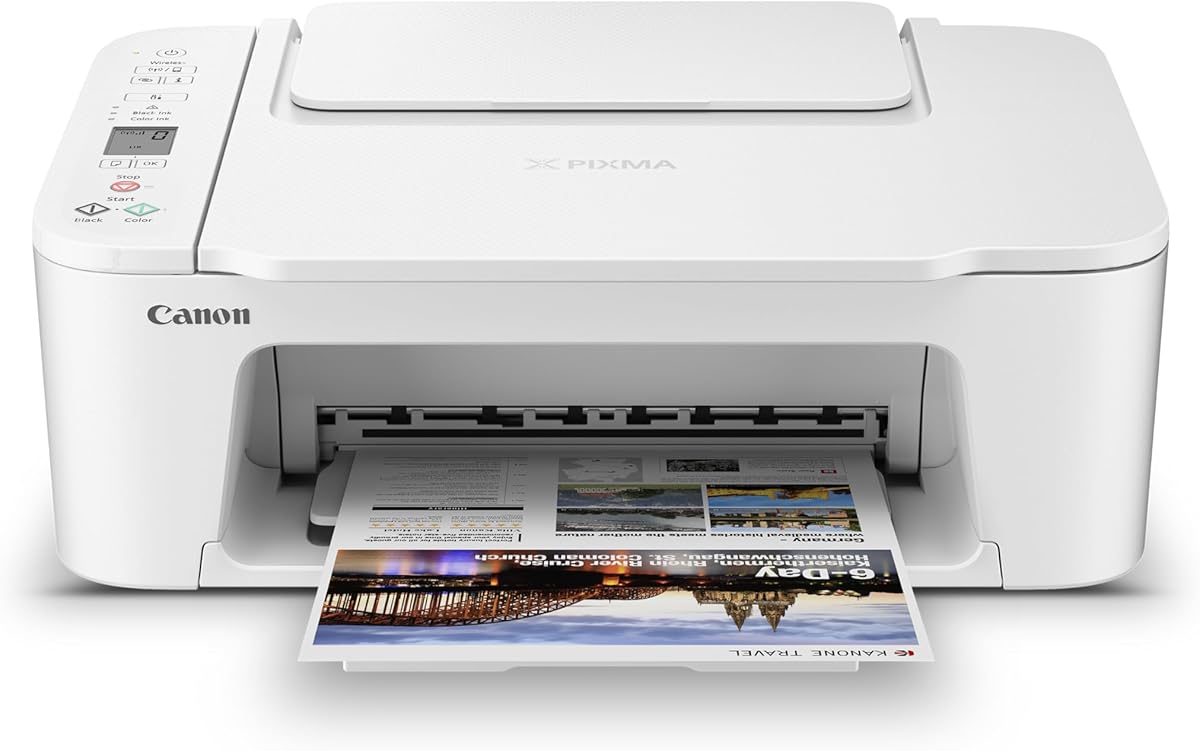
Canon PIXMA TS3720
4.0Editor score
Simple cartridge-based printing
Easy mobile device setup
Compact all-in-one design
A printer for infrequent home use should make occasional printing simple without creating unnecessary setup, cartridge, or maintenance burdens. The most useful model combines straightforward wireless connectivity, familiar ink cartridges, manageable hardware, and enough copying or scanning capability for occasional school, household, and paperwork needs.
This guide compares ten all-in-one inkjet options from HP, Canon, and Brother. The comparison considers document and photo capabilities, automatic duplex printing, document feeders, displays, mobile printing, ink-management approaches, and other features that can make a printer easier to own when you do not print every day.
The selections show which printers work best for straightforward home documents, which add convenience for photos and multipage jobs, and which use high-capacity ink systems for households seeking fewer cartridge replacements. Product details and availability can change, so readers should confirm current specifications, ink requirements, and prices before purchasing.
4.0Editor score

4.2Editor score

3.9Editor score
As an Amazon Associate we earn from qualifying purchases.
The table below places all ten printers side by side, emphasizing the functions and hardware features most relevant to a household that prints only occasionally.



The HP DeskJet 2923 is a basic color inkjet all-in-one designed for everyday documents such as letters, recipes, to-do lists, and financial papers. Its 3.7 rating reflects a straightforward package rather than a feature-packed home office machine, but the combination of color printing, copying, scanning, wireless connectivity, and a 60-sheet tray makes it a practical option for infrequent users.
We may earn a commission when you buy through this link, at no additional cost to you.
Its strongest qualities are accessibility and flexibility. The printer supports up to 7.5 pages per minute in black and 5.5 pages per minute in color, which is suitable for short documents rather than large print queues. HP AI can format web pages and emails to reduce wasted paper, while the HP app provides a route to print, scan, copy, or fax from a smartphone. The icon LCD and compact construction keep the controls approachable and the footprint manageable.
The trade-offs are important for anyone who prints regularly. There is no automatic duplex feature, so multipage documents must be flipped or reinserted manually. The modest input capacity may also require more frequent paper loading than larger-tray models. Nevertheless, for a household that prints a handful of pages every few weeks, those limitations are unlikely to outweigh the convenience of wireless setup and an all-in-one design.
This is a sensible recommendation for someone who values familiar controls, mobile access, and compact hardware more than speed or advanced paper handling. It is particularly appropriate for school projects, personal correspondence, household forms, and occasional color pages. Those who routinely print double-sided reports should consider a model with automatic duplex printing, but for uncomplicated occasional use, the DeskJet 2923 covers the essential needs.
Dual-band Wi-Fi allows the printer to connect over 2.4GHz or 5GHz networks, while the HP app brings print, scan, copy, and fax functions to a smartphone. The included HP AI formatting tools are particularly useful when web pages or emails would otherwise produce awkward layouts and extra pages.
The 60-sheet input tray and compact design are appropriate for a home office or shared household space. An icon LCD supplies basic status and control functions without adding the complexity of a larger touchscreen.
We may earn a commission when you buy through this link, at no additional cost to you.
The Canon PIXMA TS6520 combines a 4.2 rating with a notably useful mix of features for occasional home printing. It prints, copies, and scans in color, supports automatic two-sided printing, and includes a 1.42-inch monochrome OLED display that can show ink levels and printer status at a glance. That balance makes it easier to recommend than a bare-bones printer without making it oversized or complicated.
We may earn a commission when you buy through this link, at no additional cost to you.
Canon describes the two-cartridge hybrid ink system as capable of sharp text and vivid colors across documents and photos. The automatic duplex function reduces paper consumption and avoids manually turning multipage pages, while dual-band Wi-Fi supports stable connections on 2.4GHz and 5GHz networks. Mobile printing through Canon PRINT, Apple AirPrint, and Mopria Print Service is also supported for convenient on-demand output.
Its main limitation is the absence of an automatic document feeder. Users must place pages directly on the scanner for copying or scanning, which is manageable for a few sheets but less convenient for a long archive. The absence of a large paper tray also means it is better aligned with occasional jobs than sustained office workloads. Those are reasonable compromises for a compact home printer.
The TS6520 is well suited to people who want automatic duplex printing, decent photo capability, and an easy status display in one relatively compact device. It works particularly well for recipes, worksheets, travel documents, reports, and family photos. If a home user regularly scans multi-page papers, the added convenience of a document feeder may justify moving up to a different Canon model.
Automatic two-sided printing is the TS6520's most important advantage for a home user. It produces cleaner multipage documents, conserves paper, and removes the repeated need to turn a stack and feed it back into the machine.
The monochrome OLED display provides quick access to ink status and printer information. It is more informative than a minimal indicator while remaining simpler and less distracting than a full touchscreen interface.
We may earn a commission when you buy through this link, at no additional cost to you.
The HP DeskJet 2955 is a wireless color inkjet all-in-one with a 3.7 rating and a weight of 10.45 pounds. Its product listing does not provide the same detailed feature set as some entries in this guide, but the core positioning is clear: a basic home printer for users who need straightforward wireless document output rather than advanced paper handling.
We may earn a commission when you buy through this link, at no additional cost to you.
As an all-in-one model, it offers the expected combination of printing, copying, and scanning rather than limiting the household to a single-function printer. Its listed weight indicates a reasonably manageable piece of equipment, and its place in the DeskJet range suggests an emphasis on uncomplicated everyday operation. The wireless capability gives users the freedom to print from a connected computer or mobile device without running a cable to the machine each time.
Because the supplied information is limited, it is wise not to assume advanced functions such as automatic duplex printing, an automatic document feeder, or a particular display size. Those omissions could matter if you routinely handle long reports. The more important question is whether a basic wireless all-in-one meets your needs without adding a subscription-oriented ink plan or spending money on hardware you will rarely use.
The DeskJet 2955 is best for straightforward occasional documents, copies, and scans in a home setting. It may also appeal to buyers who recognize the HP product line and want a simple wireless device. Before buying, check the final package specifications for connectivity, paper handling, and included ink so you know exactly which convenience features are present.
An all-in-one configuration keeps a single device responsible for common household tasks. This is a space-efficient choice when occasional copies and scans are needed but a separate scanner or copier would rarely justify the added footprint.
At 10.45 pounds, the printer is not designed as a stationary office machine. Its listed weight and basic wireless feature set align with a home user who values a relatively modest setup over high-volume production.
We may earn a commission when you buy through this link, at no additional cost to you.
The Canon PIXMA TS4320 earns a 3.9 rating and stands out through a balanced collection of home-printing features. It handles color documents and photos, prints and scans, supports automatic duplex printing, and connects over dual-band Wi-Fi. Its EPEAT Silver and Energy Star certifications make it especially relevant for buyers who want a capable home printer with stated environmental credentials.
We may earn a commission when you buy through this link, at no additional cost to you.
The two-cartridge hybrid ink system is designed to produce sharp text and vivid color while keeping the hardware affordable and approachable. Automatic two-sided printing is useful for reports, worksheets, and other multipage jobs, reducing paper waste and the inconvenience of manually reversing a stack. Media support extends to standard documents and photos up to 8.5 by 11 inches, with bordered or borderless options.
There is no automatic document feeder, so scanning or copying several pages requires more direct handling. The listing also emphasizes single-sided output as its core function, although automatic duplex printing is listed as a key capability. As with any compact all-in-one, it is not intended to replace a heavy-duty office printer for continuous work.
The TS4320 is a compelling recommendation for environmentally conscious households that still want automatic duplex printing, wireless access, and color capability. It fits neatly into a mixed home-and-remote-work routine where reports, school materials, forms, and photos appear periodically. Buyers who need automated multipage scanning should look instead toward the TR7120.
EPEAT Silver and Energy Star certification give the model stated sustainability credentials that matter when choosing electronics for the home. Automatic duplex printing also helps reduce paper use during routine document printing.
The hybrid cartridge system is intended to balance sharp text with vivid color output. Support for bordered and borderless photos gives the printer useful flexibility for projects beyond ordinary school assignments.
We may earn a commission when you buy through this link, at no additional cost to you.
The HP OfficeJet Pro 8125 is the most advanced home-office option in this guide, combining a 3.9 rating with a 225-sheet input tray, automatic document feeder, and automatic duplex printing. It also provides faster output of up to 20 pages per minute in black and 10 pages per minute in color, making it appropriate for people whose occasional printing needs sometimes become substantial projects.
We may earn a commission when you buy through this link, at no additional cost to you.
A 2.7-inch color touchscreen provides a phone-like interface for navigating settings, while the HP app extends printing, scanning, copying, and faxing to a smartphone. HP AI can clean up web and email layouts, dual-band Wi-Fi supports connection reliability, and the printer is designed for professional-quality reports, presentations, business documents, and flyers. The supplied listing also notes HP Wolf Essential Security for network protection.
This machine is larger and more capable than a basic occasional-use printer, so some of its strengths may be unnecessary if you only produce a page every few months. A three-month Instant Ink trial is included, after which a monthly fee applies unless canceled. That is a service arrangement to evaluate rather than a requirement, but buyers should understand it before relying on the program. The printer is also intended to work with cartridges containing original HP chips or circuitry.
The OfficeJet Pro 8125 is a strong premium choice for hybrid workers, students with substantial coursework, or households that want one capable machine for both color documents and routine office functions. It is especially useful when a document feeder and automatic duplex printing are worth the added size. For only a few sheets each year, a simpler Canon model may be the more rational ownership choice.
The combination of a 225-sheet tray, automatic document feeder, and automatic duplex printing reduces interruptions during larger jobs. Fast color and black speeds make it more practical when occasional printing transitions into a sustained office workload.
The 2.7-inch color touchscreen makes menus and status information more visible than a basic segment display or icon panel. It is a useful upgrade for users who want direct control without navigating everything through a mobile app.
We may earn a commission when you buy through this link, at no additional cost to you.
The Canon PIXMA TR7120 shares the TS6520's 4.2 rating and adds an automatic document feeder, making it a strong fit for users who periodically scan or copy multipage paperwork. Automatic duplex printing, a 1.42-inch monochrome OLED display, and dual-band Wi-Fi make it a well-equipped compact all-in-one for a home office.
We may earn a commission when you buy through this link, at no additional cost to you.
Its scanner and copier can handle more than a single sheet at a time through the automatic feeder, which is valuable for forms, records, and lengthy documents. The two-cartridge hybrid ink system is designed for sharp text and vivid color, while media support covers documents and photos up to 8.5 by 11 inches. Canon PRINT, Apple AirPrint, and Mopria Print Service support direct printing from compatible mobile devices.
Compared with a basic compact printer, the TR7120 requires more desk space and adds a mechanism that must be kept clean. A hybrid cartridge configuration may also require attention if one color runs out, depending on how the remaining colors are used. These are practical trade-offs for buyers who regularly value the feeder rather than for someone who only prints one short page at a time.
The TR7120 is a strong recommendation for a home office that occasionally handles several pages to scan, copy, or print. It combines wireless convenience, color output, automatic duplexing, and a document feeder without moving into a large office printer category. It is particularly attractive for remote workers who print signed documents, file family records, or prepare reports without a separate scanner.
The automatic document feeder is the defining feature for this Canon model. It reduces the need to lift and reposition every sheet during copying or scanning, making the printer more practical for archived paperwork and multipage forms.
Automatic two-sided printing and dual-band Wi-Fi support a streamlined home workflow. Direct mobile printing through common services allows users to produce occasional pages without transferring a file to a desktop computer first.
We may earn a commission when you buy through this link, at no additional cost to you.
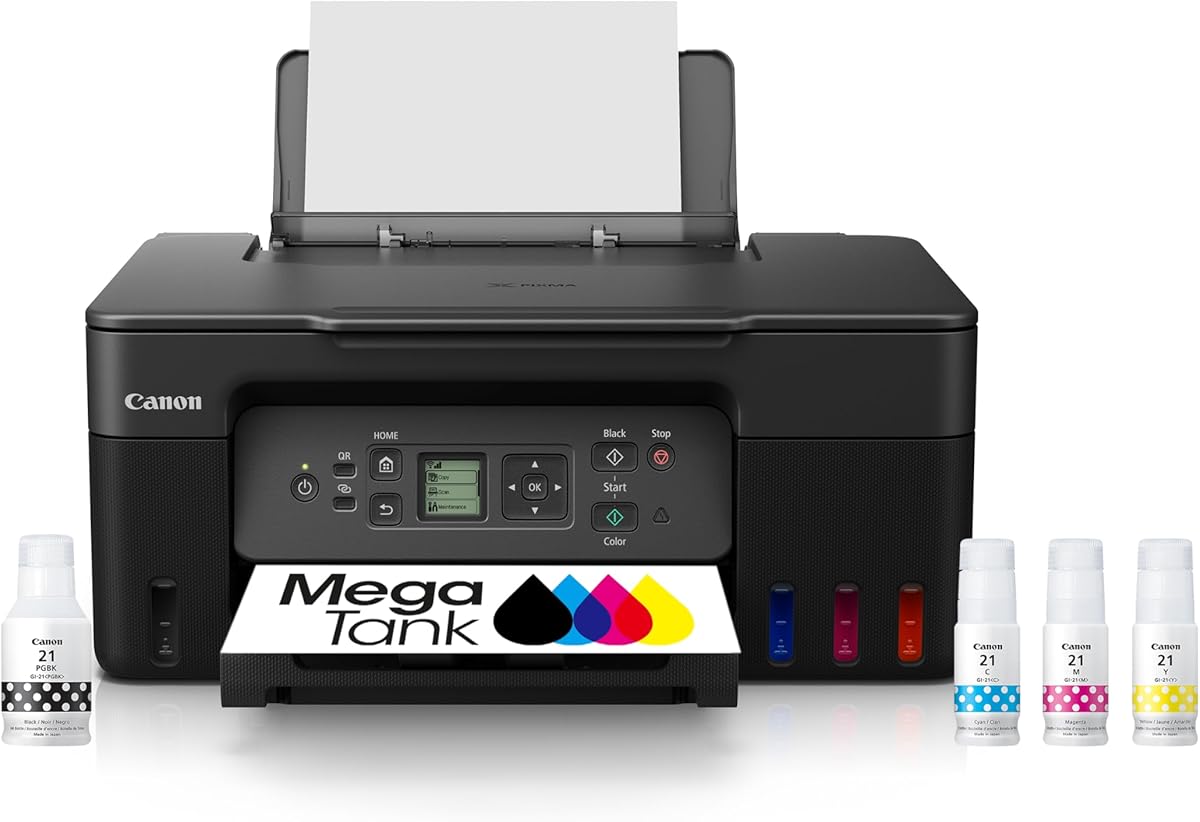
The Canon MegaTank G3270 offers a 4.1 rating and a tank-based approach that can make sense for households seeking fewer ink replacements. It provides wireless printing, copying, and scanning, with a 1.35-inch square LCD for basic status information. Canon states that the included ink can cover up to 6,000 black-and-white or 7,700 color pages, depending on the test conditions described in the product disclaimers.
We may earn a commission when you buy through this link, at no additional cost to you.
A high-capacity ink system can be attractive when you want to reduce cartridge shopping and keep ink on hand. It is especially useful for occasional users who avoid a printer precisely because they dislike replacing small cartridges. The all-in-one design still provides scanning and copying, so you do not need a separate device for basic household administration.
The major limitation is single-sided printing. There is no automatic duplex feature, meaning multipage documents require manual page turning. A tank-based printer also needs to be used periodically to help keep the ink system in good working order, which may not suit every person. Buyers should read the product disclaimers and confirm current page-yield claims before making assumptions about individual results.
The MegaTank G3270 is a good match for users who prefer fewer cartridge replacements over duplex convenience. It is particularly appealing for families that produce a moderate number of color pages, school projects, or activity sheets over time. If you print only a tiny number of documents and want the simplest possible setup, a cartridge-based model may require less attention.
The tank-based system is designed to hold and deliver a large volume of ink. Canon advertises up to 6,000 black-and-white or 7,700 color pages with the included set, making it a practical consideration for reducing frequent cartridge replacement tasks.
A 1.35-inch square LCD provides a clear central point for printer information. Wireless print, copy, and scan functions keep the device useful for everyday household tasks without requiring a fixed computer connection.
We may earn a commission when you buy through this link, at no additional cost to you.
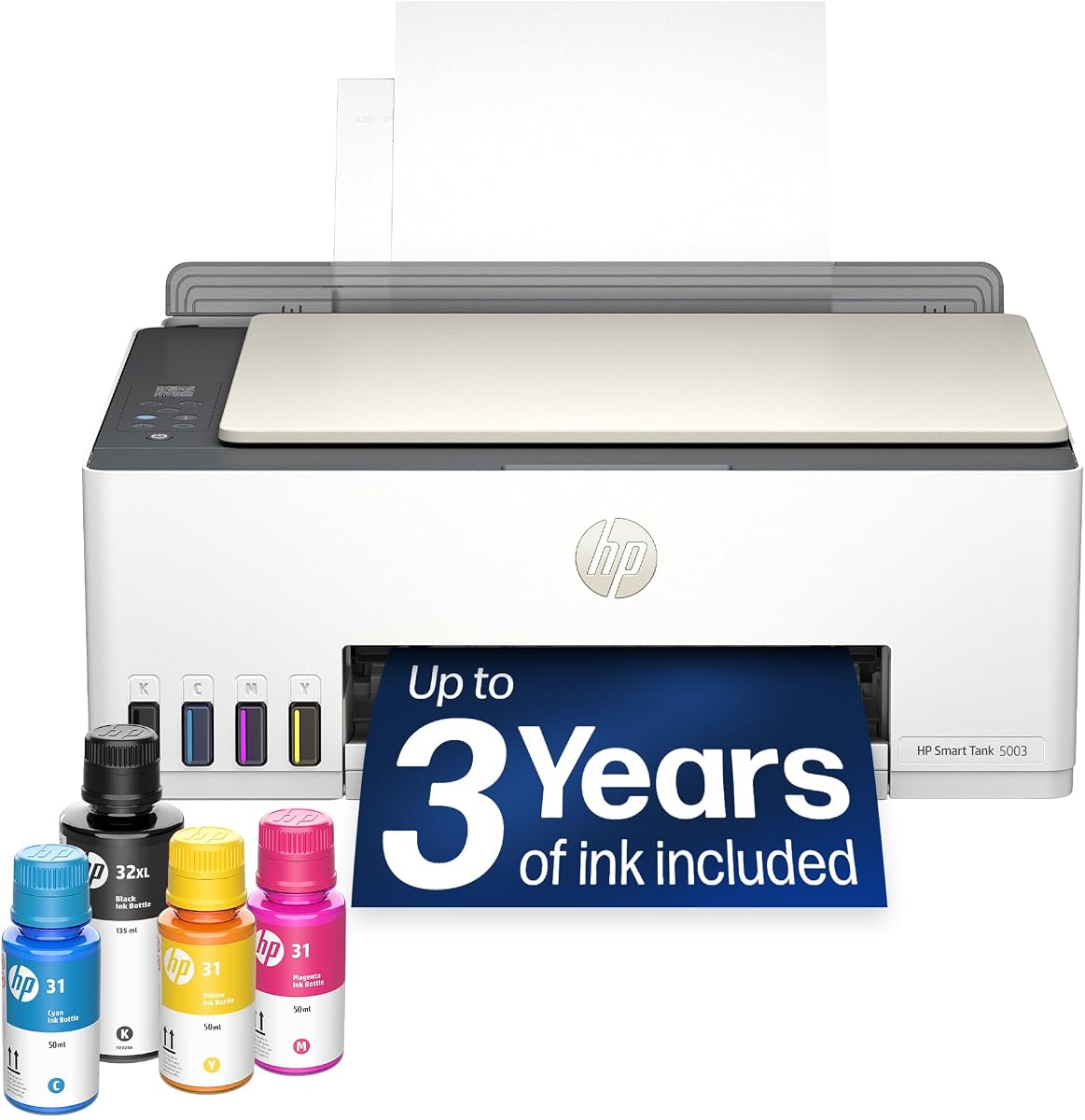
The HP Smart Tank 5003 is a 3.9-rated wireless ink tank all-in-one that emphasizes long intervals between refills. HP states that up to three years of ink is included and that the supplied setup can produce up to 6,000 color or black pages, making it an interesting choice for households that want substantial printing capacity without managing small replaceable cartridges.
We may earn a commission when you buy through this link, at no additional cost to you.
The refill process is designed to be clean and straightforward. Users plug ink bottles into the cartridge-free tank and allow the ink to drain into place, avoiding the squeezing and spilling associated with some cartridge-free systems. The printer supports color printing, copying, scanning, borderless output, and mobile or wireless printing, so it remains versatile despite its tank-centered design.
High page capacity does not necessarily make a printer optimal for a user who prints only one page every several months. Tank-based systems are generally best used regularly, and a household that may leave the printer idle for long stretches should consider that operating pattern carefully. The device also has a larger overall proposition than a basic compact model, so physical space and included ink should both be considered.
The Smart Tank 5003 is most compelling for a family or remote worker who expects a meaningful flow of pages over time and values refill simplicity. It is a premium ink-tank alternative to cartridge-based options. For extremely light use, the abundance of included ink may be unnecessary, but it does provide a convenient way to avoid repeated cartridge purchases later.
The cartridge-free design uses refill bottles that plug into the ink tank. This approach avoids handling small sealed cartridges and gives the printer a large internal ink capacity for households seeking fewer replacement cycles.
Printing, copying, scanning, and borderless photo support make the model useful beyond plain text documents. Wireless and mobile printing add convenience for jobs produced from a phone or tablet.
We may earn a commission when you buy through this link, at no additional cost to you.
The Brother Work Smart 1360 delivers an unusually complete feature set for a home printer, with a 3.8 rating, a 20-sheet automatic document feeder, automatic duplex printing, and a 150-sheet paper tray. It is a compact color inkjet all-in-one built around printing, copying, and scanning for schoolwork, documents, reports, and everyday home-office tasks.
We may earn a commission when you buy through this link, at no additional cost to you.
Its 1.8-inch color display and cloud app connections are practical advantages. The printer can print from and scan to services such as Google Drive, Dropbox, Box, and OneDrive, while Brother Mobile Connect provides mobile access and Page Gauge ink monitoring. The automatic document feeder handles multipage copying or scanning, and automatic duplex printing reduces paper waste on longer documents.
Print speeds are listed at up to 16 pages per minute in black and 9 pages per minute in color, which is more than adequate for a household that prints intermittently. The 150-sheet tray exceeds the capacity of many compact models, although a busy family may still fill it quickly. Cloud connectivity also requires compatible services and account setup, so users should confirm their preferred platform is supported before installation.
The Work Smart 1360 is a strong budget-oriented choice for someone who wants more convenience than the simplest all-in-one offers. It is particularly suitable for students, hybrid workers, and families that occasionally scan multipage papers. The combination of duplexing, a feeder, a color screen, and generous paper capacity makes it versatile without moving into the larger premium category.
A 20-sheet single-sided automatic document feeder supports routine copying and scanning, while automatic two-sided printing simplifies longer reports. These are meaningful conveniences for a home printer that may handle school packets or occasional office paperwork.
The 1.8-inch color display makes cloud service selection and device management more convenient. Supported connections to Google Drive, Dropbox, Box, and OneDrive can reduce the need to move files manually between devices.
We may earn a commission when you buy through this link, at no additional cost to you.
The Canon PIXMA TS3720 is a straightforward basic home printer with a 4.0 rating. It prints, copies, and scans in color, uses two easy-to-replace ink cartridges, and provides a 1.5-inch segment LCD for basic control. That uncomplicated design makes it one of the most approachable options for a household that needs a printer only several times per month.
We may earn a commission when you buy through this link, at no additional cost to you.
Its streamlined setup process is intended to get the printer running quickly. Dual-band Wi-Fi supports stable connections on both 2.4GHz and 5GHz networks, and users can configure wireless access without a computer. Canon PRINT, Apple AirPrint, and Mopria Print Service support mobile printing, while Chromebook compatibility is listed for school documents and other everyday output.
The limitation is single-sided printing, which means multipage documents must be handled manually. There is also no automatic document feeder, so copying and scanning involve placing pages directly on the scanner. Media versatility is one of its strengths: it supports envelopes, photos, high-resolution paper, banners, 5-by-5-inch square photos, and borderless photos up to 5 by 7 inches.
The TS3720 is a sensible recommendation for someone who values easy setup, familiar cartridge handling, and mobile access without wanting a large or complex device. It is ideal for a few school assignments, recipe pages, personal letters, and small photos each month. Users who regularly produce double-sided reports will be better served by one of the duplex-equipped models in this guide.
The TS3720 can connect to Wi-Fi without a computer, which simplifies initial placement in a home. Dual-band support helps maintain a stable connection while the printer remains accessible to phones, tablets, and compatible computers.
Two easy-replace cartridges keep ink servicing understandable for occasional users. At the same time, the printer supports envelopes, banners, square photos, and borderless output for projects beyond standard documents.
We may earn a commission when you buy through this link, at no additional cost to you.
For infrequent printing, the best choice is the simplest device that reliably handles your actual documents, connection method, and ink preferences without adding features you will rarely use.
Cartridge-based printers are intuitive for many households because replacement steps are familiar and the printer can be left unused for stretches without the same operational concerns associated with a large tank. The HP DeskJet 2923, HP DeskJet 2955, Canon PIXMA TS4320, Canon PIXMA TS6520, Canon PIXMA TS3720, and other cartridge models are all reasonable when pages are produced only periodically. By contrast, the Canon MegaTank G3270 and HP Smart Tank 5003 use refillable tanks, reducing the need to buy small cartridges and potentially supporting a much larger stated page volume.
Automatic two-sided printing is one of the most important upgrades for a home user who occasionally prints reports, worksheets, or multipage correspondence. The Canon PIXMA TS6520, Canon PIXMA TS4320, Canon PIXMA TR7120, HP OfficeJet Pro 8125, and Brother Work Smart 1360 include duplex capabilities. It reduces paper consumption, shortens the process, and prevents the frustrating need to rotate and reinsert an entire stack. Models such as the Canon PIXMA TS3720 and Canon MegaTank G3270 are single-sided, so they make more sense for short documents or users who rarely need multipage output.
An automatic document feeder, or ADF, is valuable when you copy or scan several pages at a time. The Brother Work Smart 1360 includes a 20-sheet single-sided feeder, the Canon PIXMA TR7120 includes an ADF, and the HP OfficeJet Pro 8125 has a 225-sheet tray and document feeder for heavier workflows. If your scanning needs are limited to receipts, identity pages, and a form, a flatbed scanner may be sufficient and can help you select a smaller, simpler model.
A wireless printer is particularly useful for infrequent users because there is no need to move a computer or connect a cable every time a page is needed. All featured models support wireless functions, and the HP, Canon, and Brother options also provide mobile app or compatible-service support. Dual-band Wi-Fi is listed for the HP DeskJet 2923, Canon PIXMA TS6520, Canon PIXMA TS4320, Canon PIXMA TR7120, Canon PIXMA TS3720, and Brother Work Smart 1360, allowing selection of either 2.4GHz or 5GHz networks. Check whether your router uses one or both bands before setup.
A printer does not need to be fast if it produces a page every few weeks, but speed becomes more meaningful when occasional jobs expand into a stack of school materials or remote-office documents. The HP DeskJet 2923 is listed at up to 7.5 ppm black and 5.5 ppm color, while the Canon PIXMA TS3720 is listed at approximately 7.7 black and 4 color images per minute. The HP OfficeJet Pro 8125 reaches up to 20 ppm black and 10 ppm color, making it better suited to a heavier home-office schedule.
The right control interface depends on how much you want to manage directly from the printer. The Canon PIXMA TS6520 and TR7120 use a 1.42-inch monochrome OLED display, while the TS3720 uses a 1.5-inch segment LCD. The Brother Work Smart 1360 has a 1.8-inch color display, and the HP OfficeJet Pro 8125 offers a larger 2.7-inch color touchscreen. Simple displays suit occasional, predictable jobs, while a touchscreen becomes more useful for navigating settings, cloud destinations, and status information.
Extra features should correspond to real needs rather than appearing on a feature checklist. Borderless photo support on the Canon PIXMA TS3720 is useful for small creative projects, while the HP Smart Tank 5003 adds borderless printing and a high-capacity refill system. The OfficeJet Pro 8125 provides HP AI page formatting, a color touchscreen, an ADF, and stronger paper capacity, making it a genuine office upgrade. The Canon MegaTank G3270 and HP Smart Tank 5003 are most compelling when reducing cartridge replacements is a primary goal.
Before buying, consider where the printer will live, how you will install it, and what happens when ink or paper runs out. Cartridge models generally provide a familiar replacement routine, while tank models require refill bottles and periodic use to remain reliable. The HP OfficeJet Pro 8125 includes a three-month Instant Ink trial, followed by a monthly fee unless canceled, and it is intended to work with cartridges containing original HP chips or circuitry. Confirm these service and cartridge conditions before making the final decision.
Begin by unboxing the printer in a clean, open area and removing all packing materials, including transport restraints and protective film. Install the supplied ink according to the manufacturer's instructions, load a few sheets of ordinary paper, and connect the printer to your Wi-Fi network. The Canon PIXMA TS3720 can be configured without a computer, while the HP and Brother models provide corresponding apps or control-panel procedures for wireless setup. Before printing, confirm that the correct paper type is selected so the device does not use settings intended for plain documents when producing photos.
For routine use, open the appropriate tray, load paper within the stated capacity, and make sure the guides sit against the stack. Use the display or mobile app to check ink status, wireless connection, and the default copy or print settings. Select the correct media size and enable automatic duplex printing when the printer supports it and the job requires both sides. For longer documents, place originals in the automatic document feeder rather than on the scanner glass, and confirm that the page orientation matches the source.
When the printer has been idle, run a short test page and inspect alignment or color output before beginning an important job. Keep the lid and scanner glass clean, remove dust from the paper path gently, and avoid operating the printer in a damp or dusty location. Cartridge-based printers should be stored with the cartridges installed as directed, while ink-tank models should be used periodically according to their guidance. Refill bottles carefully in a spill-resistant area, close the ink ports after filling, and address low-ink warnings before starting a large project.
An ink tank can be suitable, but it works best when the printer is used regularly. The Canon MegaTank G3270 and HP Smart Tank 5003 offer high stated page capacity and fewer cartridge replacements, yet ink-tank systems can be less forgiving after long periods of inactivity. A cartridge-based model may be simpler if you print only a few pages every few months and prefer familiar maintenance.
Not necessarily, but it is extremely useful when you print multipage reports, worksheets, or correspondence. Automatic duplexing reduces paper use and avoids manually turning each sheet or stack. If long documents are uncommon, a smaller single-sided printer may be adequate; if they occur regularly, the Canon TS6520, TS4320, TR7120, HP OfficeJet Pro 8125, and Brother Work Smart 1360 are stronger choices.
Buy one if you frequently copy or scan multiple pages. The HP OfficeJet Pro 8125, Canon PIXMA TR7120, and Brother Work Smart 1360 include document feeders, making routine paperwork easier to process. If you only scan receipts, a single form, or the occasional photograph, the flatbed scanners on the other models should be sufficient.
The Canon PIXMA TS3720 is among the simplest options because it uses two familiar cartridges, has a clear setup process, connects over dual-band Wi-Fi, and offers mobile printing through common applications. It does not offer duplex printing or an automatic document feeder, so buyers who often handle longer documents should consider a more capable alternative.
Yes, all ten models offer wireless printing, and the supplied information identifies mobile app or compatible-service support across the lineup. Canon models support services such as Canon PRINT, Apple AirPrint, and Mopria Print Service. The HP app supports printing and document functions, while Brother Mobile Connect provides mobile device management and printing.
No, because ratings do not reveal how well a printer matches your workflow. A highly rated model with an unnecessary document feeder may cost more and occupy more space than you need, while a lower-rated model with automatic duplex printing could serve your documents better. Consider ink system, paper handling, connectivity, and the types of pages you actually print.
Place it in a dry, dust-free area with enough room around the paper trays and output path. Avoid locations exposed to direct sunlight, temperature swings, kitchen moisture, or clutter. If you use a tank printer, regular use is also important, so accessibility and a willingness to run occasional test pages should influence the location.
Treat an ink subscription as an optional service rather than a requirement of the printer. The HP DeskJet 2923 includes a six-month Instant Ink trial, and the HP OfficeJet Pro 8125 includes a three-month trial, with monthly fees applying afterward unless canceled. Compare your genuine page needs with the program's terms and use the printer with your preferred compatible ink before enrolling.
The Canon PIXMA TS6520 is the strongest all-around recommendation because it combines a 4.2 rating, automatic duplex printing, dual-band Wi-Fi, a useful OLED display, and color copying and scanning in a compact package. The Canon PIXMA TS3720 is the simplest choice for basic, cartridge-based use, while the HP OfficeJet Pro 8125 serves buyers who want a more advanced home-office configuration with a document feeder, larger tray, touchscreen, and faster output.
Prioritize the features that remove real friction rather than the largest specification list. Occasional school projects and a few color pages may need nothing more than the TS3720. Multipage reports make duplex printing valuable, while recurring copies and scans justify an automatic document feeder. A tank system is worth considering when reducing cartridge replacements matters, provided the printer will be used often enough to suit that design.
Before ordering, verify the current package contents, supported wireless setup, ink format, paper capacity, and service terms. Ratings and product details can evolve, and prices change more often. Comparing the final offering with your actual printing habits will lead to the most practical home printer choice.