
Microsoft Surface Dock 2
4.8Editor score
Dual 4K at 60Hz
Gigabit Ethernet included
199W desktop power supply
Surface Connect connection
Our guide compares the best docking stations for Surface Pro, covering display support, port selection, power delivery, networking, compatibility, and setup.
A docking station can transform a Surface Pro from a portable touchscreen into a practical desktop workstation. The right model adds displays, faster networking, more USB connections, audio, and dependable charging while reducing the need to move several adapters between the tablet and your desk.
This guide compares ten docking stations using the specifications and customer ratings supplied for each product. It examines display configurations, port selection, wired networking, power delivery, Surface compatibility, card readers, and included accessories so readers can find a dock suited to their particular workspace.
Each review highlights the features that distinguish one model from another and explains the compromises involved in its design. Ratings and product details may change over time, while prices and availability fluctuate frequently, so confirm the current listing and specifications before making a purchase.
4.8Editor score

4.8Editor score

4.5Editor score
The table below compares the ten shortlisted docks by their connection method, display support, wired network capability, and power configuration. The comparisons reflect the supplied product information and highlight how each dock is designed to serve a different Surface Pro workflow.



The Microsoft Surface Thunderbolt 4 Docking Station has a listed rating of 4.4 and offers one of the most balanced feature sets in this guide. It is designed to expand a compatible Surface into a workstation with fast data transfer, multiple USB connections, wired internet, audio, charging, and support for as many as two 4K monitors.
We may earn a commission when you buy through this link, at no additional cost to you.
Its strongest attraction is the breadth of the interface selection. Three USB-C and three USB-A ports cover modern and traditional accessories, while the 2.5G Ethernet connection offers a faster network path than the 100Mbps connections found on several alternatives. Thunderbolt 4 handles data-intensive tasks, and the dock's rapid charging capability can power a compatible laptop in about 2.5 hours according to the supplied information.
The main limitation is that the product information emphasizes two 4K monitors rather than the three-display arrangements offered by several third-party docks in this roundup. Buyers also need to verify the connection method and exact compatibility of their particular Surface Pro model. Raised tactile indicators are a thoughtful addition, although they do not compensate for a display layout that does not meet a specific need.
This is a compelling choice for a professional who wants fast ports, capable wired networking, charging, and a conventional two-monitor setup without committing to a crowded third-party hub. It suits users who prioritize balanced connectivity and a recognizable Microsoft product over maximum display count.
Thunderbolt 4 and a generous collection of USB ports make this dock attractive for file transfers, external storage, and everyday peripherals. The 2.5G Ethernet port also provides a useful wired alternative when network reliability matters more than wireless convenience.
Support for up to two 4K monitors creates a useful balance for document work, analysis, and media viewing. It is less elaborate than a triple-display dock, but potentially more appropriate for a compact and uncluttered desk.
We may earn a commission when you buy through this link, at no additional cost to you.
The Microsoft Surface Dock, model Pd9-00003, carries a listed rating of 4.5 and delivers a straightforward way to turn a compatible Surface into a desktop PC. Its magnetic Surface Connect cable, external power supply, and familiar port layout make it a practical option for users who want a permanent desk setup.
We may earn a commission when you buy through this link, at no additional cost to you.
Two Mini DisplayPort outputs support the primary use case of a Surface Pro, while four USB 3.0 ports are enough for a keyboard, mouse, storage device, and another peripheral. Gigabit Ethernet supplies a stable wired connection, and the 3.5mm audio-out port serves wired speakers or headphones. The dock also supports high-speed data transfer.
This is an older-style Surface dock rather than a modern Thunderbolt or expansive USB-C hub. It lacks USB-C ports and newer display technologies, so users with demanding multi-monitor requirements may find the supplied port selection less versatile. Compatibility is also limited to the Surface models specifically listed in the product information.
It remains well suited to a conventional office desk, especially for someone focused on two external monitors, stable networking, and uncomplicated plug-and-play operation. Those who need USB-C accessories, card readers, or three external screens should look elsewhere, but the core dock functionality is clear and approachable.
The Surface Connect design means a compatible tablet can become a desk-based workstation with one magnetic connection. Peripherals remain attached to the dock, which makes moving between a home and office setup comparatively uncomplicated.
Four USB 3.0 ports, dual Mini DisplayPort connections, Gigabit Ethernet, and audio cover many routine needs. The layout is dated in places, but it remains effective for conventional productivity equipment.
We may earn a commission when you buy through this link, at no additional cost to you.
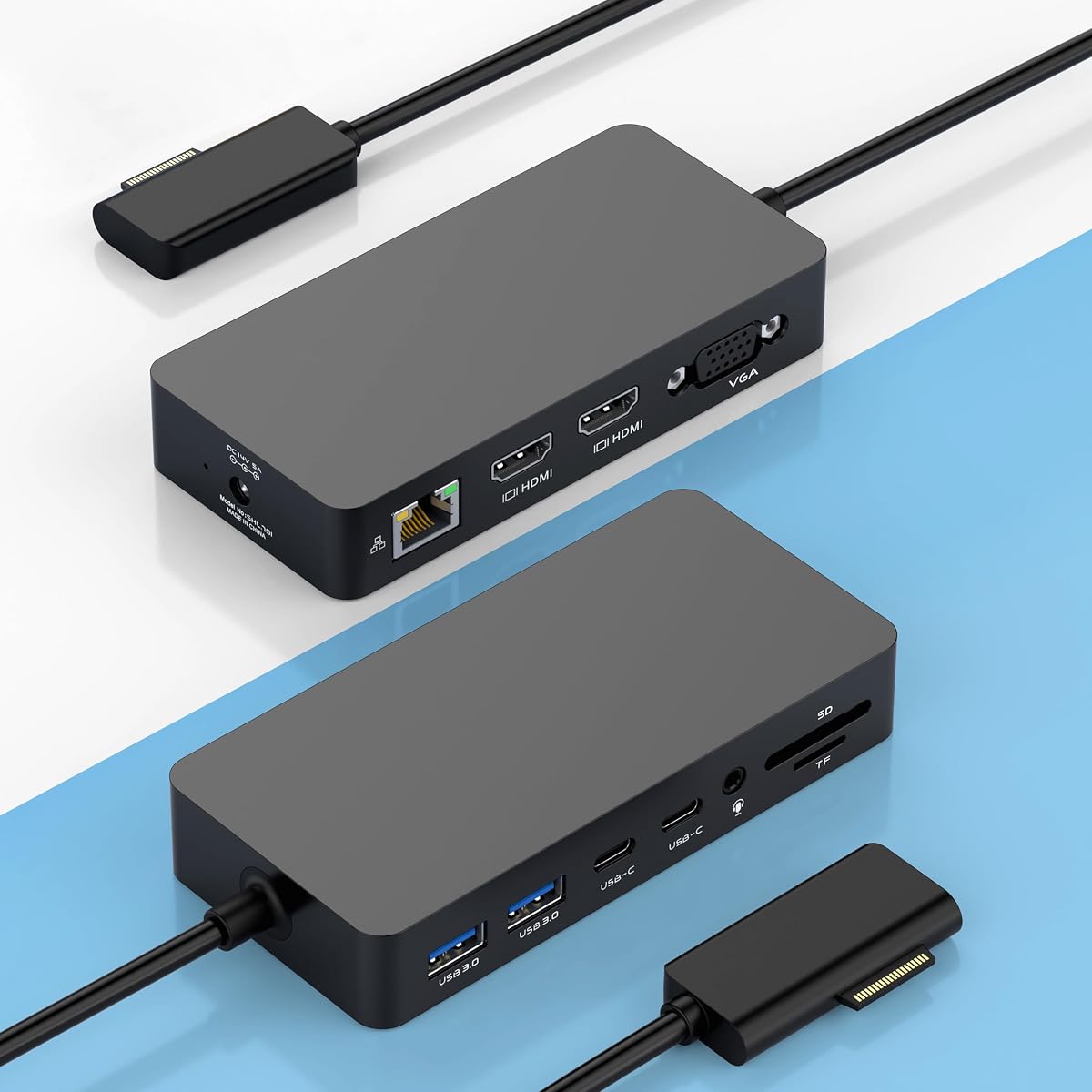
This 12-in-1 Surface docking station has a listed rating of 4.1 and is built around an unusually flexible display arrangement. Two HDMI outputs and one VGA connection can drive three external screens, making it attractive for users who need more visual workspace than a standard two-monitor Surface dock provides.
We may earn a commission when you buy through this link, at no additional cost to you.
Beyond the video connectors, the dock includes two USB-A 3.0 ports, two USB-C data ports, a 100Mbps RJ45 Ethernet connection, SD and TF card slots, a 3.5mm headphone jack, and a DC power connection. The supplied information reports data speeds up to 5Gbps and card transfers up to 104MB/s. A power adapter and manual are included.
The trade-offs are the 100Mbps Ethernet connection and HDMI output limited to 4K at 30Hz, according to the product details. The listing also notes that the Surface's own display must be turned off when using three external screens alongside the Surface screen. These limitations make the dock more suitable for general productivity than demanding high-refresh work.
Choose this model when a three-screen layout and broad accessory support matter more than maximum network speed or high-refresh HDMI. It provides an unusually complete set of ports for a flexible multi-display office or classroom arrangement.
The dual-HDMI and VGA combination makes it possible to mix modern digital displays with legacy equipment. The included note about disabling the Surface screen helps clarify the behavior of the full multi-monitor configuration.
SD and TF readers are valuable for photographers and creators moving media directly to the Surface. A 100Mbps Ethernet connection provides a stable alternative to Wi-Fi, although it is not the fastest wired option in this guide.
We may earn a commission when you buy through this link, at no additional cost to you.
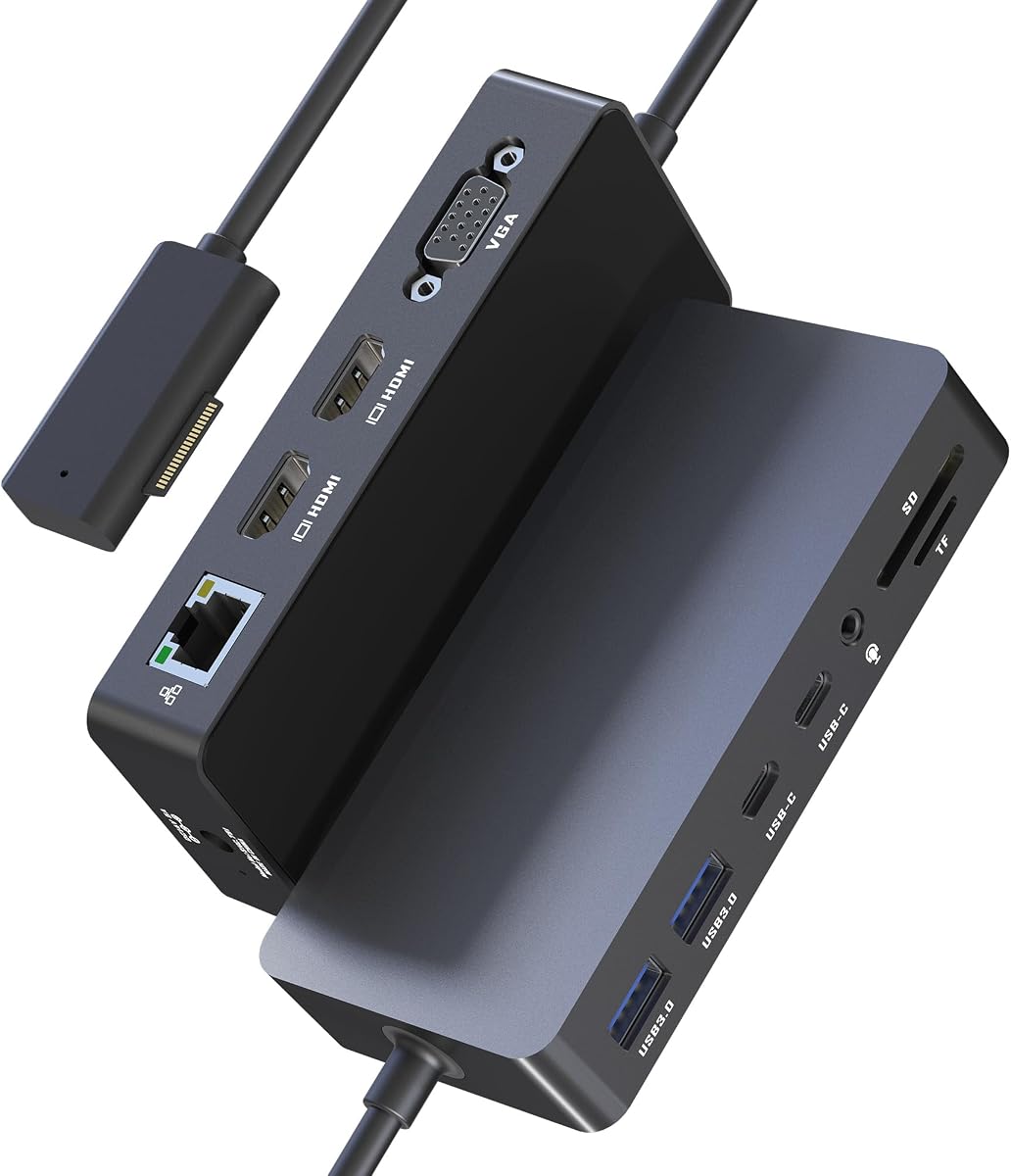
The 12-in-1 Surface Dock 2 shown here has a listed rating of 4.8, the highest among the featured products. It combines three external display outputs with a full collection of USB, network, audio, storage, and power connections, making it one of the most complete options for converting a compatible Surface into a workstation.
We may earn a commission when you buy through this link, at no additional cost to you.
Two HDMI outputs support 4K at 30Hz, while the VGA port supports 1080p at 60Hz. Two USB-A 3.0 ports and two USB-C data ports provide 5Gbps transfer capability, and the SD and TF card readers are listed at up to 104MB/s. The included 72W adapter can charge the connected Surface while peripherals are in use, while the 10/100Mbps Ethernet port and 3.5mm audio jack complete the desk setup.
Its networking is not as advanced as the 2.5G Ethernet option offered by the Microsoft Thunderbolt 4 dock, and reaching three additional screens requires turning off the Surface display as stated in the supplied information. The 4K HDMI refresh rate is also modest compared with docks that support 4K at 60Hz. Those restrictions are important for users considering high-refresh visual work.
Despite those limits, the strong rating, 12-port selection, card readers, three-screen flexibility, and included 72W power supply make this a persuasive all-purpose choice. It is best suited to office, classroom, and creative workflows where one dock needs to accommodate several kinds of equipment.
Dual USB-A, dual USB-C, memory card slots, Ethernet, audio, and three video outputs cover a wide range of desk accessories. This consolidation reduces the need for separate hubs in many professional setups.
The included 72W adapter provides a more substantial desktop power configuration than a simple bus-powered hub. It is a practical choice when the Surface Pro needs to charge while displays and several peripherals remain connected.
We may earn a commission when you buy through this link, at no additional cost to you.
This Surface Dock has a listed rating of 4.2 and offers a familiar 12-in-1 approach centered on three external displays. It is designed for Surface Pro, Surface Book, Surface Go, Surface Laptop, and Surface Laptop Go users who want one hub to handle video, data, network, audio, and charging.
We may earn a commission when you buy through this link, at no additional cost to you.
The dock includes two HDMI ports that support 4K at 30Hz, a VGA port for 1080p at 60Hz, two USB-A 3.0 ports, and two USB-C data ports. It also includes SD and TF readers, a 100Mbps Ethernet connection, a 3.5mm audio jack, and a 72W power adapter. The supplied information lists card transfer speeds up to 104MB/s and an 18-month worry-free warranty.
The network interface is limited compared with docks offering Gigabit or 2.5G Ethernet. The three-display arrangement also carries the usual caveat stated by this type of product: using the Surface screen with all three external outputs requires turning that internal screen off. These are relevant limitations for anyone who expects unrestricted multitasking.
The combination of a 72W adapter, card readers, three video outputs, and a longer warranty makes this a balanced hub for mixed creative and office use. It is particularly compelling for buyers who value the stated support period and want a broad device list without moving to a premium Microsoft dock.
Dedicated SD and TF slots can shorten the path from camera media to the attached Surface. With listed transfer speeds up to 104MB/s, the readers are a meaningful addition for photographers and video editors.
Dual HDMI and VGA accommodate both current digital monitors and older displays. That flexibility is useful in offices where monitor standards vary, although the available refresh rates should be checked against demanding creative applications.
We may earn a commission when you buy through this link, at no additional cost to you.
The Microsoft Surface Dock 2 has a listed rating of 4.5 and provides a well-established route from a compatible Surface to a conventional desktop setup. It joins a 199W power supply, an extended Surface Connect cable, and a port layout designed for high-resolution monitors and modern accessories.
We may earn a commission when you buy through this link, at no additional cost to you.
Its headline display capability is support for dual 4K displays at 60Hz, a stronger refresh-rate specification than the 4K at 30Hz output described on several 12-in-1 alternatives. Four USB-C ports, two USB-A ports, a 3.5mm audio input/output jack, Gigabit Ethernet, and Kensington-compatible security lock support cover a broad range of professional needs.
The Surface Connect interface is central to its operation, so it is best suited to compatible Surface devices and a fixed desk arrangement. There is no integrated card reader, and the larger desktop power supply may be less convenient for frequent travel. It also does not offer the three-display output that some multi-port hubs provide.
This dock is a strong all-around recommendation for a user who wants reliable dual 4K output, ample USB connectivity, fast wired networking, and one-cable charging. Its restrained, native design is especially useful for offices that favor a predictable Microsoft ecosystem over a larger collection of specialty ports.
Dual 4K at 60Hz support differentiates this dock from many three-screen hubs in the guide. It provides a comfortable balance for financial analysis, creative applications, and general multitasking across two screens.
Four USB-C and two USB-A ports, Gigabit Ethernet, audio, and security lock support create a complete fixed-workstation interface. The 199W supply also has ample capacity for a demanding desk setup.
We may earn a commission when you buy through this link, at no additional cost to you.
The SVS-00001/1917 Microsoft Surface Dock 2 USB-C has a listed rating of 4.8 and represents a polished premium option within the Surface ecosystem. It combines a complete power bundle, high-resolution monitor support, modern USB-C connectivity, and the familiar Surface Connect experience in a fixed desktop package.
We may earn a commission when you buy through this link, at no additional cost to you.
Two external monitors can run at 4K and 60Hz, while two front-facing USB-C ports and two rear-facing USB-C Gen 2 ports support a broad range of accessories. The rear also includes two USB-A ports, a 3.5mm audio jack, Gigabit Ethernet, and Kensington-compatible security lock support. A 199W power supply and an extended 80-centimeter Surface Connect cable are included.
The supplied compatibility information covers Surface Pro 4 through 7, Surface Book 2 and 3, Surface Go 2 through 4, and Surface Studio, so newer models may need separate confirmation. It also supports only two external displays, making it less suitable than a triple-output hub for users who need more screen area. The absence of card readers is another limitation for creative workflows.
For a professional building a permanent, polished workstation, this dock offers an excellent combination of display quality, network speed, charging, and device support. It is most appropriate when two high-refresh monitors and a tidy one-cable setup are the priorities rather than the maximum possible number of displays.
Dual 4K at 60Hz output provides a high standard for detailed documents, timelines, dashboards, and side-by-side research. The result is a more polished visual workspace than docks limited to 4K at 30Hz.
The included 199W supply and extended Surface Connect cable reduce the need for extra desk equipment. Front and rear USB-C placement also makes it easier to connect frequently used and stationary accessories.
We may earn a commission when you buy through this link, at no additional cost to you.
This 12-in-1 Surface Thunderbolt 4 Dock has a listed rating of 4.3 and combines an ambitious display layout with fast wired networking, charging, and extensive accessory support. It is aimed at users who want the Surface Pro to function as the center of a multi-screen professional workstation.
We may earn a commission when you buy through this link, at no additional cost to you.
The dock's headline features include dual 4K at 60Hz HDMI outputs, a 1080p VGA connection, and support for three external monitors through MST. Gigabit Ethernet offers a faster wired network option than the 100Mbps ports on several competing 12-in-1 docks. Two USB-A and two USB-C data ports, SD and TF 3.0 card readers, a 3.5mm audio and microphone jack, and a 100W DC input round out the stated configuration.
Its breadth introduces more points to verify. The listing describes a Thunderbolt 4 dock, but the actual connection method, included cable, and full compatibility with every named Surface model should be confirmed before ordering. Some display configurations may also depend on the operating system, device, and enabled display settings, making the supplied claim of three simultaneous external screens something buyers should validate carefully.
Even with that caution, it is an ambitious choice for traders, designers, and other power users who need a large visual canvas. The combination of 60Hz HDMI, Gigabit Ethernet, a 100W adapter, and card readers gives it an unusually ambitious specification profile.
Three external outputs, including two 4K HDMI ports at 60Hz, can support a serious multi-window workspace. The addition of VGA broadens compatibility with legacy monitors in offices and studios.
USB-A and USB-C data connections, 5Gbps transfer capability, Gigabit Ethernet, and media card slots support a creator-oriented workflow. These features make the dock useful for moving large media files while maintaining a stable wired connection.
We may earn a commission when you buy through this link, at no additional cost to you.
The renewed Microsoft Surface Dock 2 has a listed rating of 4.7 and brings the core strengths of the Surface Dock 2 to a renewed-product listing. It is designed for users who want a polished desktop connection without necessarily needing the newest third-party port expansion.
We may earn a commission when you buy through this link, at no additional cost to you.
Its listed capabilities include dual 4K display output at 60Hz, 199W power delivery, 10Gbps data transfer, and multi-screen connectivity through Surface Connect. Port options comprise two USB-C ports, two additional video-capable USB-C ports, two USB-A ports, a 3.5mm audio input/output jack, and Gigabit Ethernet. The package includes an original 199W power supply and a USB-C cable.
The renewed condition is the defining issue. Buyers should review the seller's condition notes, included accessories, return terms, and warranty details rather than assuming the product is identical to a new unit. The listing also states a one-year limited hardware warranty, and its display configuration remains limited to two external screens. Compatibility wording is broad, but exact support for the buyer's model should still be confirmed.
For a budget-conscious professional who accepts renewed hardware, this can be an appealing way to obtain a capable native dock with strong display and network specifications. It is less appropriate for buyers who prioritize third-party port variety, card readers, or a three-monitor arrangement.
Surface Connect provides a straightforward way to move between the tablet and a fixed desk. The supplied information also describes a tidy bundle with the original power supply and a USB-C cable for setup.
Condition, cosmetic wear, included accessories, and seller support can vary in a renewed listing. Reviewing those details is essential because the dock's underlying capability may be familiar while its physical condition is not new.
We may earn a commission when you buy through this link, at no additional cost to you.
The 10-in-1 Surface Dock has a listed rating of 4.2 and offers a compact, familiar desktop connection for many compatible Surface Pro generations. It uses magnetic Surface Connect technology and concentrates displays, USB devices, audio, Ethernet, and charging into a single desk accessory.
We may earn a commission when you buy through this link, at no additional cost to you.
Two Mini DisplayPort outputs can drive a single 4K display at 60Hz or two simultaneous displays at 4K 30Hz and 1080p 60Hz, based on the supplied information. Four USB 3.0 ports support flash drives, storage, charging, keyboards, and other accessories. A 3.5mm audio connection and Gigabit Ethernet provide familiar wired options, while the included 90W power supply adds desktop-style charging.
The main drawback is the older interface generation. There are no listed USB-C ports, and Mini DisplayPort may require suitable adapters with newer external monitors. The compatibility list also contains several older and newer model names, so buyers should verify their exact Surface before ordering. A 90W supply may be less generous than the 199W included with Surface Dock 2 models.
This dock is a sensible pick for a two-monitor workspace centered on USB-A accessories and a permanent desk. It is less compelling for users who need USB-C peripherals, card readers, three external displays, or the latest video standards.
A single Mini DisplayPort connection can drive 4K at 60Hz, while dual output combines 4K at 30Hz with 1080p at 60Hz. Those details help buyers match the dock to the resolution and refresh needs of their monitors.
Four USB 3.0 ports, Gigabit Ethernet, audio, and a 90W adapter cover many traditional office requirements. The magnetic Surface Connect cable keeps the physical setup simple.
We may earn a commission when you buy through this link, at no additional cost to you.
The most useful Surface Pro dock is the one that matches your devices, displays, and working habits. Consider connection compatibility first, then evaluate video outputs, power delivery, networking, data ports, and the kinds of accessories you need to connect every day.
A docking station cannot deliver its full potential unless it connects correctly to the Surface Pro in question. Some products in this guide use the magnetic Surface Connect interface, while others are described as Thunderbolt 4 or USB-C docks. Check the exact product listing against the precise model, generation, and port arrangement of your device before ordering. Even when a broad compatibility list is provided, it may not guarantee every output mode, power function, or feature on every generation.
Choose only a dock that explicitly supports your Surface Pro model and intended connection method. If replacing or redeploying the tablet later, favor a model with a broad, clearly stated compatibility range.
The distinction between two and three external displays can determine whether a dock suits your workflow. Dual 4K at 60Hz is especially relevant for detailed work, while dual 4K at 30Hz may be adequate for documents and general productivity. VGA adds legacy compatibility but normally offers a lower 1080p specification. Some triple-display arrangements also require the Surface's internal screen to be turned off, as noted in the supplied information.
Count your actual monitors, check their connectors and supported refresh rates, and avoid buying extra outputs you will not use. For serious analysis or media work, prioritize 4K at 60Hz over a larger but lower-resolution display count.
A Surface Pro used as a desktop often spends most of the day connected to monitors and peripherals. A dock with a dedicated power adapter can keep the tablet charged while those accessories operate. The bundled supplies range from 90W to 199W and include additional 72W, 100W, and 199W configurations in the broader product data. Match the adapter to the Surface and the demands of connected hard drives and other high-draw devices.
Look for an included compatible power supply and a clearly stated charging function. A larger desktop adapter is usually better for a fixed, multi-device workstation, while a compact setup may prioritize portability and fewer connected accessories.
Modern desks often combine legacy USB-A accessories with newer USB-C storage, phones, and adapters. The featured docks range from four USB-A ports with no listed USB-C connections to hubs that provide two of each. Several products list data transfer speeds up to 5Gbps, while the renewed Surface Dock 2 listing states 10Gbps. These figures relate to supported data paths and should not be mistaken for display bandwidth.
List the peripherals you already own, then choose the dock with enough ports of the correct type. For external SSDs, cameras, and large media workflows, verify the stated transfer rate and cable requirements.
Wired Ethernet can provide a more consistent connection for video calls, large transfers, and network-dependent work. The options in this guide range from 100Mbps Ethernet on several 12-in-1 models to Gigabit Ethernet and 2.5G Ethernet on higher-end docks. The difference is especially noticeable for large transfers and busy networks, although actual performance also depends on the router, switch, internet plan, and internal network.
Choose Gigabit or 2.5G Ethernet when network speed matters. A 100Mbps connection can still be useful where reliability and a simple fixed connection are more important than maximum throughput.
A complete dock should reduce the adapters around your monitor. Many of the reviewed models include a 3.5mm audio jack, while Surface Dock 2 options add Kensington-compatible security lock support. Creative users may value integrated SD and TF readers, which appear on several 12-in-1 hubs and can support direct media transfer. These smaller features can determine whether a dock removes clutter or merely adds another box to the desk.
Prioritize the secondary features that directly support your work. Audio matters for calls or editing, security support matters in shared offices, and card readers matter when moving camera media regularly.
Some Surface Pro owners move between a home, office, classroom, or meeting room, making a compact dock and bundled cable important. Others leave one dock permanently installed and value a larger power supply, long Surface Connect cable, front-facing ports, and a broad selection of connections. The older Surface Dock emphasizes a simple magnetic desktop layout, while the 12-in-1 products trade greater size and complexity for more display and peripheral options.
Think about where the dock will live. Choose a small, durable setup for frequent travel, but do not prioritize miniaturization over adequate power, cooling, and the ports you actually need.
Support can be a meaningful differentiator between otherwise similar hubs. The listed warranty periods range from a one-year limited hardware warranty on the renewed Surface Dock 2 to an 18-month worry-free warranty on the 12-in-1 triple-display model. Renewed products require extra attention to condition, return terms, and included accessories. For any listing, read the current description, package contents, compatibility notes, and warranty language rather than relying on the product name alone.
Confirm warranty coverage and support before purchasing, especially for a refurbished or renewed unit. A complete package with a recognized power adapter, manual, and clear support terms is preferable for a permanent desk.
Begin by identifying the correct connection for your Surface Pro. For a Surface Connect dock, attach the supplied magnetic cable to the charging and expansion port on the tablet. For a USB-C or Thunderbolt-style dock, use the compatible cable specified in the product listing. Connect the dock's power adapter before adding displays and high-draw accessories, especially when using a multi-monitor configuration.
Attach external displays one at a time and check the Surface display settings for the intended extend or mirror arrangement. If a third display does not appear, follow the listing's note about disabling the internal Surface screen. Connect peripherals to the USB-A, USB-C, Ethernet, and audio ports, then select the appropriate wired network and audio output in the operating system. Test the complete arrangement before beginning an important work session.
To care for the dock, keep it on a stable, ventilated surface and avoid placing it under papers, cushions, or other materials that restrict heat dissipation. Connect and disconnect cables by their plugs rather than pulling the cable itself. Periodically inspect connectors for dust, and keep the power brick unobstructed. If a port stops responding, test the peripheral with another cable or socket and review the current compatibility and troubleshooting guidance supplied by the manufacturer or seller.
No. Compatibility varies by model and by the connection method used. The products in this guide list support for different Surface Pro generations, and some rely on Surface Connect while others use USB-C or Thunderbolt connections. Always check the exact model and generation of your Surface Pro against the current product listing before buying.
A Surface Connect dock uses the tablet's magnetic charging and expansion connection and commonly provides a broad native desktop experience. A USB-C dock relies on the USB-C port for data, video, and potentially charging. The right choice depends on your Surface model, the dock's supplied cable, and the display and power specifications you need.
Several of the 12-in-1 models support a dual-HDMI-plus-VGA arrangement for three external displays. The supplied information for those products notes that the Surface's own screen must be turned off when using all three external outputs together. The Microsoft Surface Dock 2 options are designed primarily for two external displays.
It can be, particularly for large file transfers, stable video calls, or crowded wireless networks. The reviewed options include 100Mbps Ethernet, Gigabit Ethernet, and 2.5G Ethernet, so the appropriate choice depends on the rest of your network. Even 100Mbps can provide a useful stable alternative to Wi-Fi in many home and office environments.
Most of the featured docks are described as including a power supply. Adapter ratings vary, including 72W, 90W, 100W, and 199W configurations, while the older Microsoft Surface Dock also includes an external supply. Check the package contents and ensure that the included adapter supports both the Surface and the power demands of connected accessories.
A renewed dock can provide the same core interface specifications as a new unit, but its physical condition and included accessories may differ. Review the seller's condition description, return policy, accessory list, and warranty carefully. It is best to choose a renewed option when comfortable with documented cosmetic wear and clear support terms.
Yes. A dock can act as a charging and peripheral hub even if no external display is connected. The tablet can remain the primary screen while accessories such as a keyboard, mouse, Ethernet connection, storage, and audio equipment are attached. This setup can create a useful compact workstation with fewer cables.
Confirm the exact Surface model, connection method, display count, supported resolution and refresh rate, power adapter, and included cables. Also check the current rating, warranty, seller information, and return terms. Port layouts can look similar while differing in video, charging, or compatibility behavior, so the detailed listing matters.
The Microsoft Surface Thunderbolt 4 Dock stands out for balanced everyday connectivity, while the Microsoft Surface Dock remains a simple, recognizable two-monitor solution. For a broad three-screen hub with card readers and substantial charging, the 12-in-1 Surface Dock 2 options provide the most complete feature sets, and the Surface Dock 2 stands apart for polished dual 4K output and native desktop integration.
Prioritize compatibility before port count. Once the dock definitely supports your Surface Pro and connection method, choose according to real workspace needs: high-refresh dual displays for detailed work, three outputs for extensive multitasking, faster Ethernet for intensive transfers, or card readers for regular media handling. Avoid paying attention to features you will never use simply because they appear on a longer specification list.
Finally, check the current listing, package contents, rating, warranty, and price before ordering. Availability, configuration details, and pricing can change, so the product page should remain the final source for the exact model, included power supply, connection cable, and support terms.
